
Animated Gradients
Meet the Animated Gradients feature for Divi 5! Soft washes of light drifting over a hero, aurora glows on the horizon, seawaves rippling through your brand colors, rays of light fanning out behind a ticket button — Animated Gradients brings the gradients you already set in Divi to life, on any section, row, column or module, without a single line of code and without a separate module. Turn on Animate in the Background group, pick one of 24 animation types, and see it live in the Visual Builder. The animation uses your own gradient colors, so there is nothing new to design.
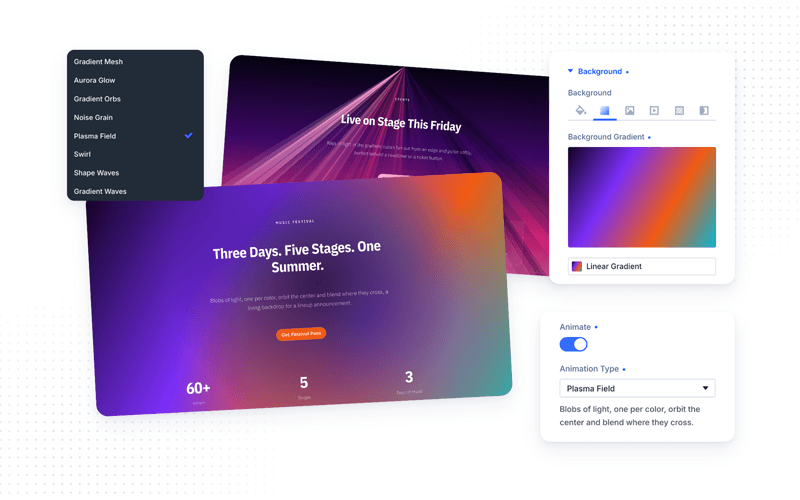
With Animated Gradients you can:
- Animate the background gradient of any section, row, column or module
- Choose from 24 animation types, from simple color changes and moving gradients to soft light, waves, rays and blobs
- Keep your own colors: the animation uses the gradient’s stops, positions and direction
- Fine-tune each type with its own settings, like duration, easing, size or the number of rays
- Animate every item of a list, like posts, projects or gallery images, one by one
- Keep pages fast: the scripts only load where they are used, and every animation pauses when it scrolls out of view
Enabling Animated Gradients
Animated Gradients is a Divi Pixel feature, so it is switched on once from the plugin dashboard and is then available on every element you build.
- Go to Divi → Divi Pixel → General
- Find Enable Animated Gradients and turn it on
- Click Save Changes
NOTE: This feature is built for Divi 5. Once enabled, it adds Animate fields to the Background group of every Divi 5 module, row, column and section.
Animating A Gradient
- Open the page in the Divi Visual Builder
- Open the settings of the section, row, column or module you want to animate
- In the Background group, switch to the Gradient tab and set up your gradient, with at least two colors
- Turn on Animate. The gradient starts moving in the preview straight away
- Pick an Animation Type and adjust its settings below
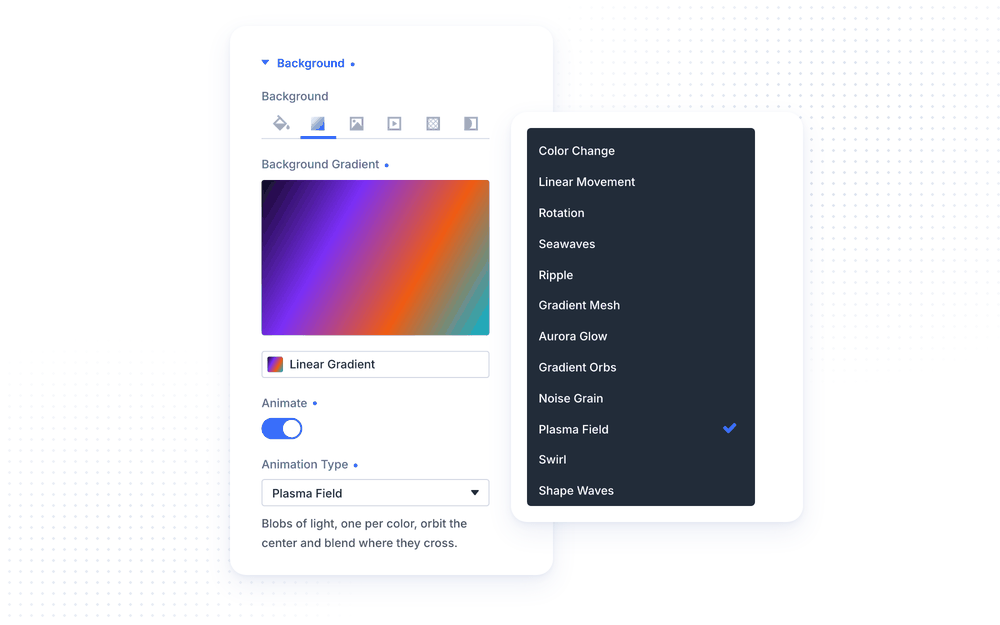
The Animate fields sit right below the gradient picker and only show while the Gradient tab is selected. A short description of the selected type appears under the Animation Type dropdown, and only the settings that type uses are shown below it.
The animation is drawn behind the element’s content, so text, buttons and forms stay on top, readable and clickable. A background image on the same element keeps working too, with its own blend mode, size and position.
NOTE: Every animation uses the gradient you set: linear, circular, elliptical or conic, with as many color stops as you like. Global gradient colors work too, so changing a global color updates the animation everywhere it is used. More stops give the soft-light types, like Gradient Mesh and Gradient Orbs, more shapes of light to work with.
Animation Types
The Animation Type list holds all 24 types.
Classic movements
- Color Change — the background fades through your gradient colors, one solid color at a time.
- Linear Movement — your gradient slides along its own direction and repeats seamlessly.
- Rotation — your gradient turns around the Rotation Origin.
- Swirl — a soft color wheel of all your colors turns over your gradient.
Waves
- Seawaves — waves ripple through your gradient, swelling and shrinking each color band.
- Ripple — a single ripple travels through your gradient, widening each color band as it passes.
- Gradient Waves — layered waves, one per color, roll in from one edge.
- Line Waves — thin wavy lines colored along your gradient sway across the element.
- Floating Lines — bundles of thin lines, each carrying your whole gradient, drift across in gentle waves.
- Shape Waves — a grid of small shapes with waves of light and color rolling through it.
Soft light
- Gradient Mesh — large soft washes of light, one per color, drift slowly over your gradient.
- Aurora Glow — wide soft glows drift and fade into each other, like light on the horizon.
- Gradient Orbs — soft discs of light, one per color, float slowly over your gradient.
- Plasma Field — blobs of light, one per color, orbit the center and blend where they cross.
- Lava Lamp — soft color blobs drift over a solid base and blend where they meet.
- Morphing Blobs — two blurred blobs drift and change shape over your gradient.
Special effects
- Light Rays — rays of light in your gradient colors fan out from an edge and pulse softly.
- Radar — a radar screen in your gradient colors: rings, spokes and a sweeping beam.
- Sunset — a vertical gradient that cross-fades to the next colors, like a changing sky.
- Flicker Flame — flickering bands of color rise from the bottom edge. The first color is the hot core.
- Holographic — your gradient rotates slowly under a faint rainbow sheen, like iridescent foil.
- Noise Grain — animated film grain over a static gradient, with an optional vignette.
- Cursor Glow — a circular glow follows the cursor.
- Scroll Gradient — the gradient shifts colors and angle as the page scrolls. It has no settings of its own.
Timing Settings
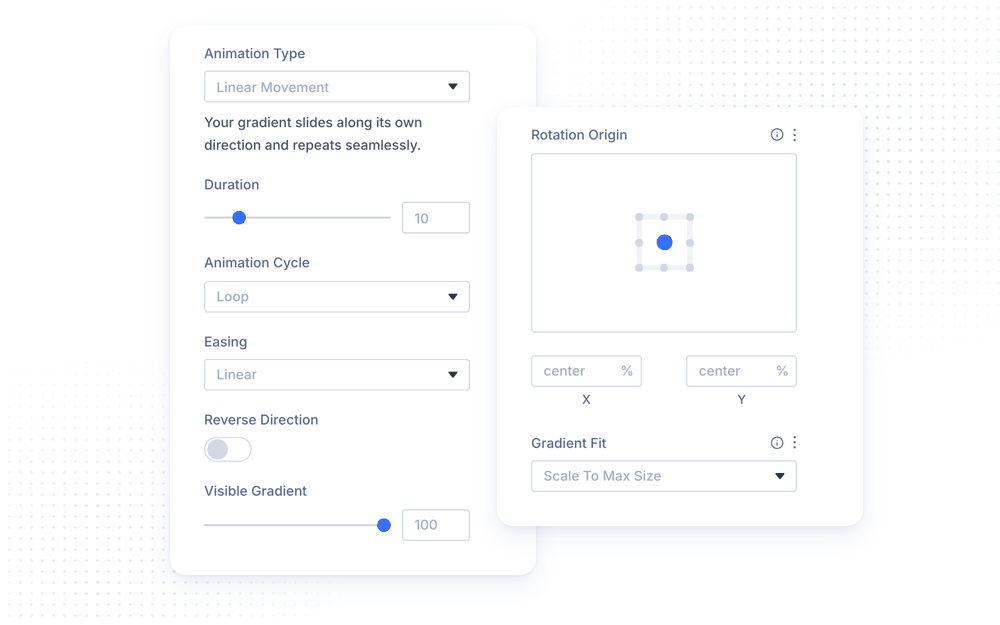
Color Change, Linear Movement, Rotation and Swirl run on their own clock.
- Duration sets how many seconds one full cycle takes. Higher values give a slower animation. The slider goes up to 60 seconds, and you can type a longer duration.
- Animation Cycle decides what happens at the end of a cycle: Loop starts over seamlessly, Bounce plays it backwards. Ripple has this setting too.
- Easing sets how the animation speeds up and slows down: Linear, Ease, Ease In, Ease Out or Ease In Out. Linear keeps an even pace.
- Reverse Direction plays the animation in the opposite direction.
Linear Movement and Rotation add a setting of their own:
- Visible Gradient (Linear Movement) sets how much of the gradient fits in the element at once. 100% shows it once, lower values zoom in, and higher values, which you can type, repeat it.
- Rotation Origin (Rotation and Swirl) is the point the gradient turns around. Pick it on the grid or type exact values.
- Gradient Fit (Rotation) decides how a linear gradient is sized while it turns: Scale To Max Size keeps it steady, Stretch always fills edge to edge, and Fill Edges keeps its original size.
Speed, Size And Intensity
Most of the other types share a few settings.
- Speed sets how fast the animation moves, from 0.1 to 10. 1 is a calm pace, 2 is twice as fast. The four clock-based types use Duration instead, and Noise Grain and Scroll Gradient have no Speed.
- Size sets how large the shapes of light are, as a share of the type’s built-in size (100%). It is used by Gradient Mesh, Aurora Glow, Gradient Orbs, Plasma Field and Swirl.
- Opacity sets how strongly the effect covers your gradient, for the same five types. Lower values let more of your gradient show through.
- Travel sets how far the shapes of light move around, for Gradient Mesh, Gradient Orbs and Plasma Field. 0 keeps them in place.
- Intensity sets how bold the movement is, from 0.5 to 2, for Lava Lamp, Flicker Flame, Cursor Glow, Holographic and Morphing Blobs.
Type Settings
Many types add settings of their own. Every one has a sensible default, so a type looks finished the moment you pick it.
- Seawaves — Size (how strongly the waves push the colors) and Intensity (how many waves run through the gradient at once)
- Ripple — Size and Delay, the pause in seconds between ripples
- Aurora Glow — Position of the glow: Top, Center or Bottom
- Gradient Orbs — Orbs Per Color, Softness of the orb edges and an extra Blur
- Swirl — Arms (how many times your colors repeat around the wheel) and Blur
- Shape Waves — Cell Size, Shape (Mixed, Squares, Circles, Triangles or Diamonds), Shape Size, Contrast, Flow, Direction and Edge Fade
- Gradient Waves — Amplitude, Frequency, Height and the Edge the waves rise from
- Line Waves — Lines, Amplitude, Frequency, Line Width and Angle
- Floating Lines — Bundles (All Three, Top, Middle or Bottom), Lines, Spacing, Line Width and Amplitude
- Light Rays — Origin (Top Center, Top Left, Top Right, Left, Right, Bottom Center or Center), Rays, Spread, Length and Pulse
- Radar — Rings, Spokes, Beams, Beam Width and Size
- Noise Grain — Amount, Grain Size, Flicker, Blend (Overlay, Soft Light or Normal) and Vignette
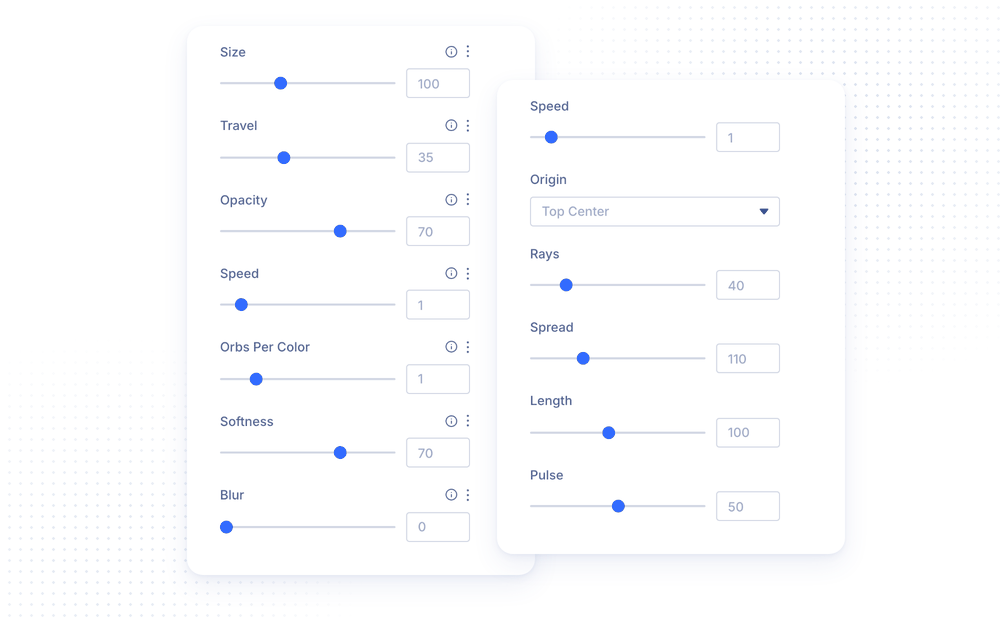
NOTE: Gradient Orbs’ Blur is heavier on performance than Softness. Use Softness for soft edges, and Blur only when you want a truly out-of-focus look.
Modules That Animate Each Item
Some modules render a list rather than a single block. On those, the gradient is animated on each item individually, so every card gets its own animation:
- Blog, one per post
- Portfolio, Filterable Portfolio and Fullwidth Portfolio, one per project
- Gallery, one per image
- Button, on the button itself rather than its full-width wrapper
- Divi Pixel’s Blog Slider, Filterable Grid, Filterable Gallery, Masonry Gallery, Testimonial, FAQ, Flip Box, Tilt Image, Expanding CTA and Button Grid items
This happens automatically, with no extra setting to find.
Performance And Accessibility
Animated Gradients is built to stay light on the pages that use it and invisible on the pages that do not.
- Nothing is loaded on pages where no element has Animate turned on.
- Every animation pauses while its element is off-screen and picks up again when it scrolls back into view.
- Slow-moving types that repaint the whole background, like Gradient Mesh, Aurora Glow or Light Rays, are capped at 30 frames per second, which looks the same and halves the work. Fast types like Linear Movement and Seawaves keep the full frame rate, so they never look choppy.
- The feature ships no stylesheet and no animation library.
- Visitors whose system is set to reduce motion see the first frame of the animation as a still gradient.
- The Visual Builder preview and the published page run the exact same code, so what you tune is what your visitors get.
Design Ideas
- Hero glow uses Gradient Mesh on a dark section with a four-stop gradient in your brand colors, so soft light drifts behind the headline.
- Event section uses Light Rays with Origin: Top Center behind a ticket button, in a deep purple to pink gradient.
- Pastel feature block uses Gradient Orbs on a light, warm gradient, with Opacity lowered so the text stays easy to read.
- Animated buttons add Linear Movement to a Button module with a short Duration, so the gradient slides across the button.
- Blog grid animates the Blog module with Holographic, so every post card gets its own iridescent sheen.
- Scroll story uses Scroll Gradient on a long section, so its colors and angle shift as visitors scroll through it.