
Background Effects
Meet the Background Effects feature for Divi 5! A starfield drifting behind your hero, northern lights over an app landing page, ink swirling under the cursor, a neon grid room, light pouring through a pool — Background Effects adds an animated WebGL or canvas background to any Divi 5 section, row, column or module, without a single line of code and without a separate module. Choose one of 46 effects, set your colors, the speed and how strongly it reacts to the cursor, all per element and right inside the Visual Builder, with a live preview while you tune it.
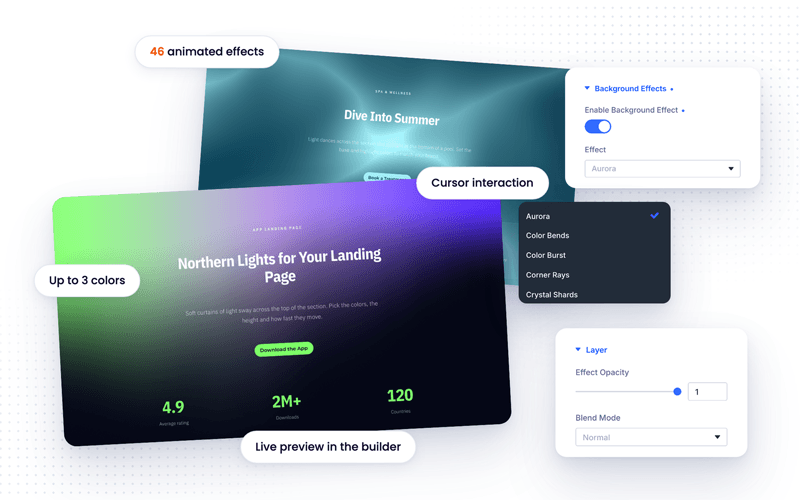
With Background Effects you can:
- Add one of 46 animated backgrounds to any section, row, column or module
- Recolor any effect with up to three colors and a Background Color, or keep its own palette
- Make it calmer or livelier with one Speed setting, and set how strongly it reacts to the cursor
- Fine-tune every effect with its own settings, from wave height to star density
- Blend it with the element’s own background using Effect Opacity and Blend Mode
- Draw the effect behind your content or in front of it, without ever blocking a click
- Keep pages fast: only the effects a page uses are loaded, and they pause when they scroll out of view
Enabling Background Effects
Background Effects is a Divi Pixel feature, so it is switched on once from the plugin dashboard and is then available on every element you build.
- Go to Divi → Divi Pixel → General
- Find the Background Effects toggle group and turn on Enable Background Effects
- Click Save Changes
NOTE: This feature is built for Divi 5. Once enabled, it adds a Background Effects option group to the Advanced tab of every Divi 5 module, row, column and section.
Adding A Background Effect To An Element
- Open the page in the Divi Visual Builder
- Hover the section, row, column or module you want to animate and open its settings
- Switch to the Advanced tab and open the Background Effects group
- Turn on Enable Background Effect. The effect is live in the preview straight away
- Pick an effect from the Effect list and style it in the sections below
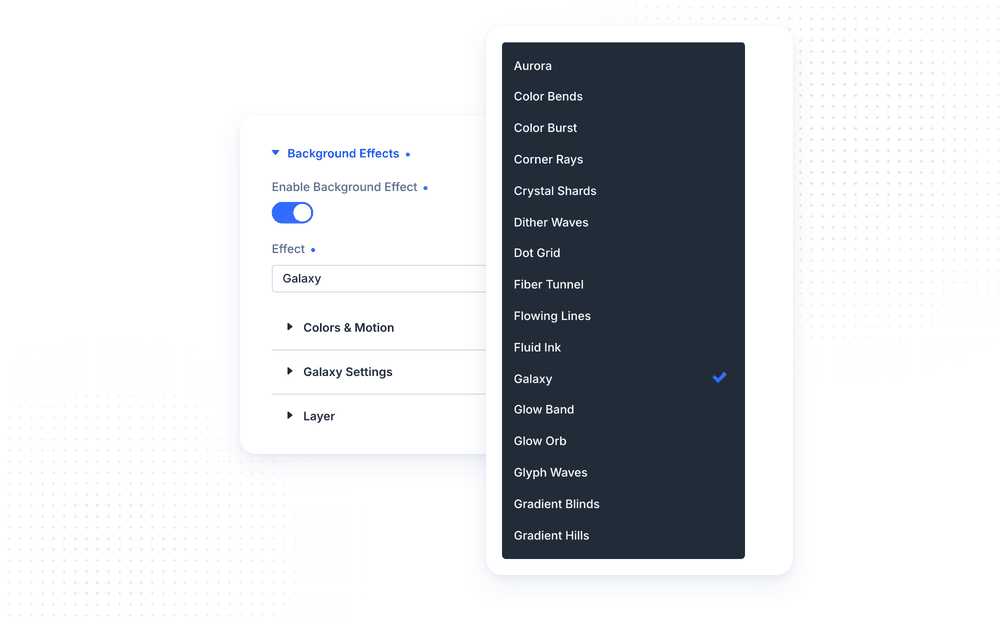
The effect is painted on its own layer inside the element. It sits above the element’s own background color, gradient or image and behind its content, follows the element’s rounded corners automatically, and never captures clicks — buttons, links and forms keep working exactly as before.
NOTE: Many effects bring their own dark backdrop and look best on a dark section. Others, like Dot Grid, Threads, Wavy Lines, Moving Grid and Particle Field, are drawn on a transparent layer and work just as well on a white or light section.
Effect
The Effect list holds all 46 effects in alphabetical order. Below it, the group has three collapsible sections: Colors & Motion, [Effect] Settings and Layer. Only the first one starts open, so the panel stays short.
- Effect chooses the animated background painted behind the element’s content. The settings below change to match it.
Switching to a different effect keeps the settings of the one you left, so you can try a few and come back without losing your work.
Colors & Motion
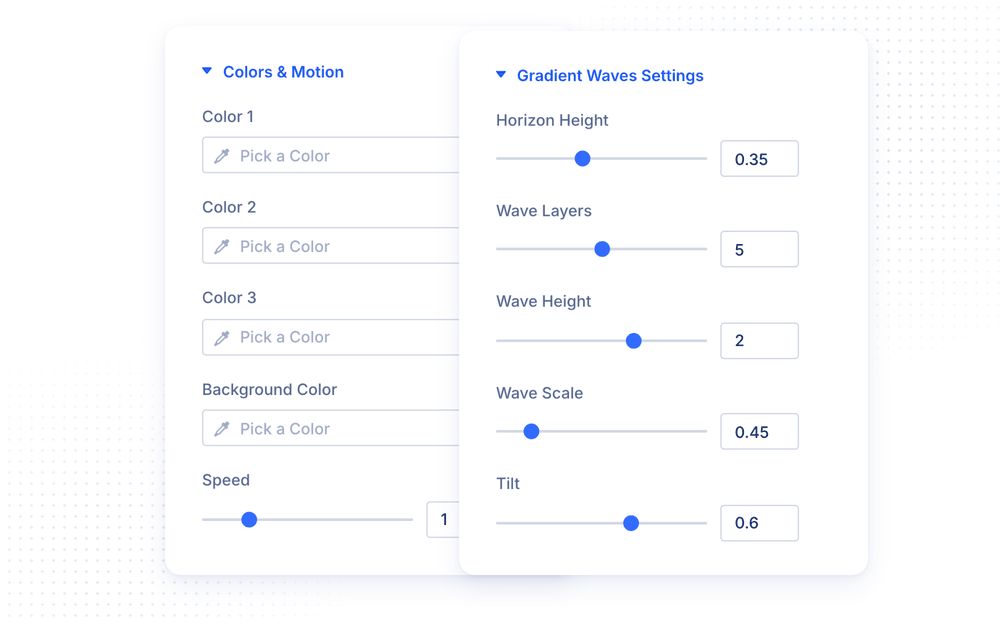
These are the settings most effects share. Each effect only shows the ones it actually uses, so Galaxy shows a single color while Gradient Waves shows three colors and a Background Color.
- Color 1, Color 2 and Color 3 recolor the effect. Leave a color empty to keep the effect’s own color.
- Background Color is the color behind the effect, for effects that paint their own backdrop. Leave it empty to keep the effect’s own.
- Speed sets the pace of the animation. 1 is the effect’s natural pace, 2 is twice as fast and 0 stops it on a still frame.
- Mouse Interaction sets how strongly the effect reacts to the cursor, from 0 (off) through 100 (the default strength) to 200 (twice as strong).
Effect Settings
The [Effect] Settings section holds the options only this effect has. Gradient Waves Settings, for example, has Horizon Height, Wave Layers, Wave Height, Wave Scale, Tilt, Fog, Crest Glow, Brightness and Grain, while Galaxy Settings has Tint Hue, Tint Saturation, Density, Glow Intensity, Twinkle, Rotation Speed and Repulsion Radius. Every setting has a sensible default, so an effect looks finished the moment you pick it.
A few effects take content of their own:
- Image Distortion distorts an image you upload. Without one, it uses a colorful generated pattern.
- Tile Motion shows up to four uploaded images on its tiles, or generated tiles when you leave them empty.
- Glyph Waves can cut a short Text out of its grid of glyphs, so the waves flow around your word.
Layer
The Layer section controls how the effect sits on the element.
- Effect Opacity fades the whole effect, from 0 to 1. Lower it to let the element’s own background show through, or to calm a busy effect behind text.
- Blend Mode sets how the effect mixes with the element’s own background color or image: Normal, Screen, Lighten, Overlay, Soft Light, Multiply, Darken, Color Dodge, Difference or Luminosity.
- Render Quality sets the resolution the effect renders at. Low (fastest) renders at half resolution, which suits soft effects; Medium renders at standard resolution; High (retina) renders sharp on retina screens but costs the most on large sections.
- Render In Front Of Content draws the effect above the content instead of behind it. It never captures clicks either way.
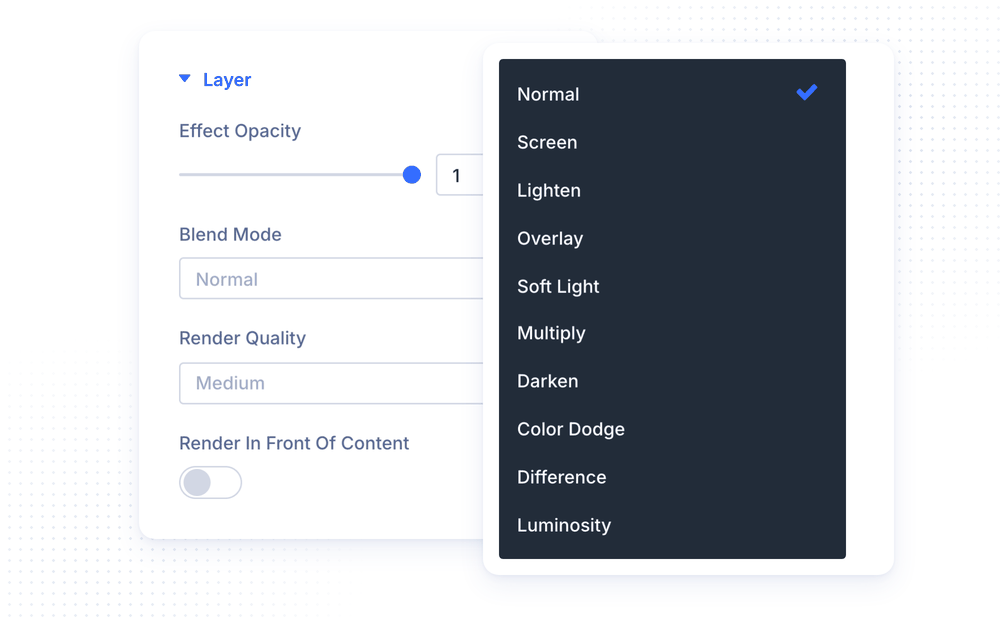
NOTE: Screen and Lighten are the easiest blend modes to start with: on a background image, they let the light parts of the effect glow on top of the photo while its dark parts disappear.
The Effects
All 46 effects, grouped by their look.
Light and glow
- Aurora — curtains of colored light hanging from the top or rising from the bottom edge, in a Soft Glow or Curtain style.
- Soft Aurora — a single soft band of glowing light floating across the element.
- Glow Band — a gently undulating band of light with a hot core and a soft bloom, up to three bands deep.
- Glow Orb — a large hollow ring of light that wobbles harder and bulges toward the cursor.
- Light Pillar — a tall column of light with smoke drifting up inside it, swaying toward the cursor.
- Light Rain — streaks of light pouring from a bright source, fanning out like a shower of light.
- Light Ribbons — thick, blurry ribbons of light bending across the dark and brightening where they cross.
- Light Threads — luminous threads all pinched through one glowing point the cursor can drag around.
- Spotlight Rays — light shafts pouring in from an edge of the element, hazy with drifting dust.
- Corner Rays — a sheaf of light rays cascading diagonally from one corner.
- Color Burst — prismatic rays bursting out of a bright center.
- Lightning — a jagged, forking bolt that strikes, flickers and re-strikes.
Gradients and color
- Color Bends — wide, soft ribbons of color sweeping across the element in long curves.
- Grainy Gradient — big, soft blobs of color melting into each other under film grain.
- Gradient Blinds — angled slats like window blinds, each filled with its own gradient, under a spotlight that follows the cursor.
- Gradient Hills — rolling layers of gradient hills along the bottom of the element.
- Gradient Waves — a hazy landscape of rolling waves toward a glowing horizon, with its own sky color.
- Iridescence — a soft pearlescent sheen, like an oil film.
- Plasma — soft, slowly folding plasma clouds in two colors.
- Psychedelic Swirl — a turbulent vortex of paint in three colors.
- Silk — a single-color sheet of silk rippling in smooth diagonal folds.
- Liquid Caustics — bright streaks of light drifting over a dark liquid, like sunlight at the bottom of a pool.
- Fluid Ink — colored ink stirred into still water. Moving the cursor pushes the fluid and drops ink.
Lines and grids
- Flowing Lines — bundles of luminous wavy lines sweeping across the element.
- Wavy Lines — many thin vertical lines bent into moving waves and pushed aside by the cursor.
- Threads — a band of fine lines drifting like silk threads, fanning open and closed as they flow.
- Line Warp — dense parallel lines bent by a flowing wave field into a shimmering moiré.
- Slatted Waves — rows of short slats lifted and lit by a wave passing through them.
- Signal Scanner — a band of thin, oscilloscope-like wavy lines lit up by a sweeping highlight.
- Topography — animated contour lines on a solid color, like a moving topographic map.
- Dot Grid — an even grid of dots the cursor lights up and pushes aside. A click sends a shockwave through it.
- Moving Grid — grid lines scrolling in one direction, with squares, hexagons, circles or triangles that fill under the cursor.
- Ripple Grid — a fine grid bent by circular waves rolling out from the center and from the cursor.
- Radar — rings and spokes with a sweeping beam and blips that flare up as it passes.
Space and depth
- Galaxy — a deep, twinkling starfield that slowly turns. The cursor gently pushes the stars aside.
- Particle Field — a slowly turning 3D cloud of round particles, with cursor parallax.
- Pixel Snow — square, pixel-snapped snowflakes falling at different depths.
- Crystal Shards — tiny glass splinters drifting toward the viewer and catching glints.
- Fiber Tunnel — a fiber-optic tunnel with pulses of light racing out along its strands.
- Grid Room — a neon wireframe room with a band of light sweeping through it.
- Square Corridor — an endless corridor of glowing square frames gliding past.
Retro, text and images
- Dither Waves — rolling waves drawn like an old low-color screen, with chunky dithered pixels.
- Letter Glitch — a wall of random characters constantly glitching into new ones.
- Glyph Waves — a fine grid of tiny glyphs following a slowly morphing wave field.
- Image Distortion — an image cut into cells that the cursor drags along and lets spring back.
- Tile Motion — a tilted wall of rounded tiles whose rows slide sideways with the cursor.
Performance And Accessibility
Background Effects is built to stay light on the pages that use it and invisible on the pages that do not.
- Nothing is loaded on pages where no element has an effect enabled. On the pages that do, only the scripts of the effects actually used are loaded, and the three.js library is only loaded for Fluid Ink.
- An effect is built just before its element scrolls into view, pauses as soon as it leaves the screen, and is released a few seconds later. A page can show many effects, one after another, without running them all at once.
- Every effect pauses while the browser tab is in the background.
- The slower effects are capped at 30 frames per second, and Render Quality lets you trade sharpness for speed on large sections.
- Visitors whose system is set to reduce motion see a single still frame instead of an animation.
- The Visual Builder preview and the published page run the exact same code, so what you tune is what your visitors get.
NOTE: The most expensive combination is a full-width section on High (retina) quality. On large sections, keep Medium, or use Low (fastest) for soft, blurry effects like Aurora, Grainy Gradient or Plasma, where the lower resolution is invisible.
Design Ideas
- SaaS hero uses Galaxy on a deep navy section, with white text and the default cursor repulsion, so the stars step aside as visitors move toward the sign-up button.
- Light feature section puts Dot Grid on a white section with a light grey Color 1 and your brand color as Color 2, so the grid lights up in your color under the cursor.
- Event page uses Light Pillar behind the headline and the ticket button, with the beam colors matched to the event poster.
- Feature cards add a different effect to each column of a row, like Silk, Plasma and Glow Orb, with rounded corners on the columns so each card glows on its own.
- Photo hero keeps a background image on the section and adds Light Rain with Blend Mode set to Screen, so the streaks of light glow over the photo.
- Tech or security page uses Letter Glitch with Center Vignette on and the copy on a dark, semi-transparent panel, so the text stays easy to read over the glitching characters.