
Cookie Consent
Meet the Cookie Consent feature for Divi 5! Add a cookie banner and a preference center to your whole site, let visitors choose which cookie categories they allow, and hold back supported scripts and Divi Pixel integrations until the visitor agrees. You design the banner right in the Divi Visual Builder with a live preview, paste tracking codes like Google Tag Manager or the Meta Pixel so they only load after consent, publish a cookie list on your privacy page, and pass the visitor’s choice on to Google Consent Mode v2 and the WordPress Consent API.

With the Cookie Consent feature you can:
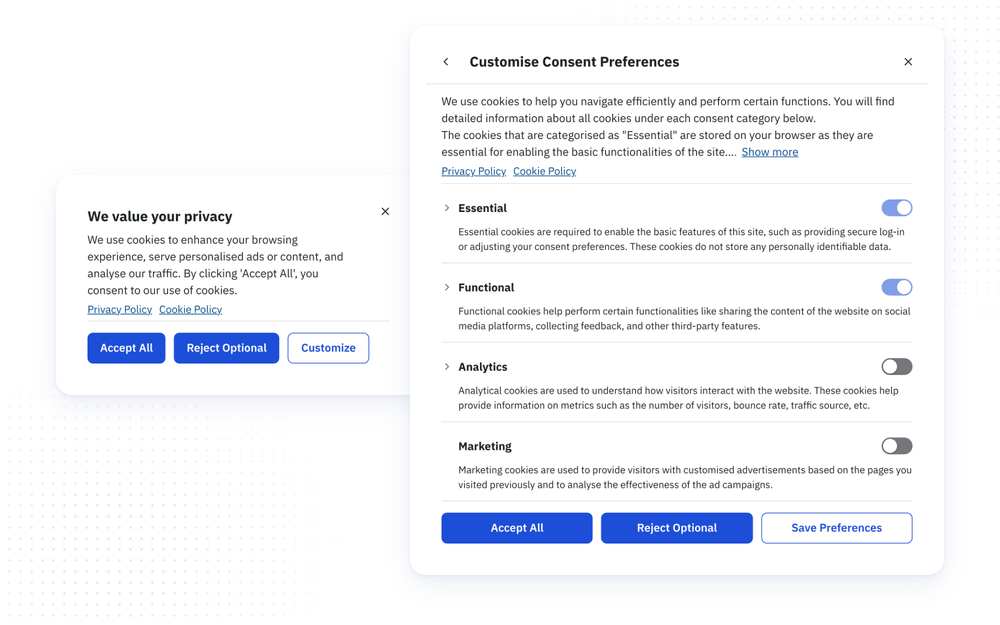
- Show a consent Banner or a full-width Bar in one of nine positions, with Accept All, Reject Optional and Customize buttons
- Let visitors choose per category in a Preference Center with toggle switches for Essential, Functional, Analytics and Marketing
- Edit every text, color, font, size and button style in the Visual Builder, with a live preview on the canvas and in-place text editing
- Paste tracking scripts (Google Tag Manager, Google Analytics, Meta Pixel and others) that only load after consent to their category
- Maintain a Cookie Declaration with a built-in preset library, and publish it with the
[dipi_cookie_declaration]shortcode - Hold back the Vote, Poll and Countdown cookies and YouTube videos in the Pixel Panorama module until consent
- Send the visitor’s choice to Google Consent Mode v2 and the WordPress Consent API
- Let visitors change their mind at any time with a floating Reopen Button or the
[dipi_cookie_preferences]shortcode
NOTE: The Cookie Consent feature helps you collect and respect consent. It does not make your site GDPR compliant on its own, and it does not automatically block every cookie, script or tracking technology on your site. Only the integrations and scripts described in this article are held back. Please check your setup with your legal advisor.
How the feature works
Categories. Every choice is made per category. There are four fixed categories:
- Essential for the basic functions of the site. Always active by default
- Functional for extra features and preferences. Always active by default
- Analytics for usage measurement. Off until the visitor agrees
- Marketing for advertising and remarketing. Off until the visitor agrees
An Always Active category shows a locked switch in the preference center, which the visitor cannot turn off, and counts as accepted. You can change this per category (see Categories below). Names and descriptions of all four categories are editable.
The consent record. The visitor’s choice is stored in a first-party cookie named dipi_consent, with a copy in the browser’s local storage as a fallback. It contains the decision per category, when it was made and when it expires. When the record expires (see Consent Expiry), is damaged, or no longer matches your configuration, the banner asks again and the optional categories stay off. The banner also asks again when you change something that matters for consent: which categories are Always Active, the Require Consent and Category settings of the integrations, or the Google Consent Mode v2 switch. Purely visual changes such as texts, colors, position or the policy links never re-prompt your visitors. If a browser blocks both the cookie and local storage, optional consent cannot be stored: Accept All is refused, while a rejection still applies for the current page.
What is held back. Until the visitor consents to a category, the feature holds back:
- the scripts you add under Scripts for that category (see Scripts below)
- your own scripts marked with
data-dipi-consent(see For Developers below) - the supported Divi Pixel integrations: Vote, Poll, Countdown and YouTube videos in the Pixel Panorama module (see Integrations below)
Scripts, pixels, embeds and media added by other plugins, by your theme or directly in your page code are not held back automatically.
Withdrawing consent. When a visitor turns an optional category off again, the feature updates the record, updates Google Consent Mode and the WordPress Consent API, deletes the known first-party cookies of the affected Divi Pixel integrations, and, if a held-back script of that category already ran on the page, reloads the page (see Reload Page After Withdrawal). JavaScript that already ran cannot be unloaded, and third-party cookies cannot be deleted from your site.
Cache-friendly. The page HTML is identical for every visitor. All decisions are made in the visitor’s browser, so page caches and CDNs keep working without any exclusions.
How to turn on Cookie Consent
- Go to Divi → Divi Pixel → Site → Cookie Consent
- In the General box, turn on Enable Cookie Consent and save the settings
- The Cookie List and Scripts boxes appear below. Add your cookies and scripts there (see Cookie Declaration and Scripts below)
- Open any page with the Divi Visual Builder
- Click the cookie icon in the left builder bar to open the Pixel Cookie Consent settings
NOTE: The banner settings are site-wide. They are not part of the page you opened, and every change is saved automatically a moment after you make it, without saving the page. The banner preview only shows on the canvas while the Pixel Cookie Consent settings are open.
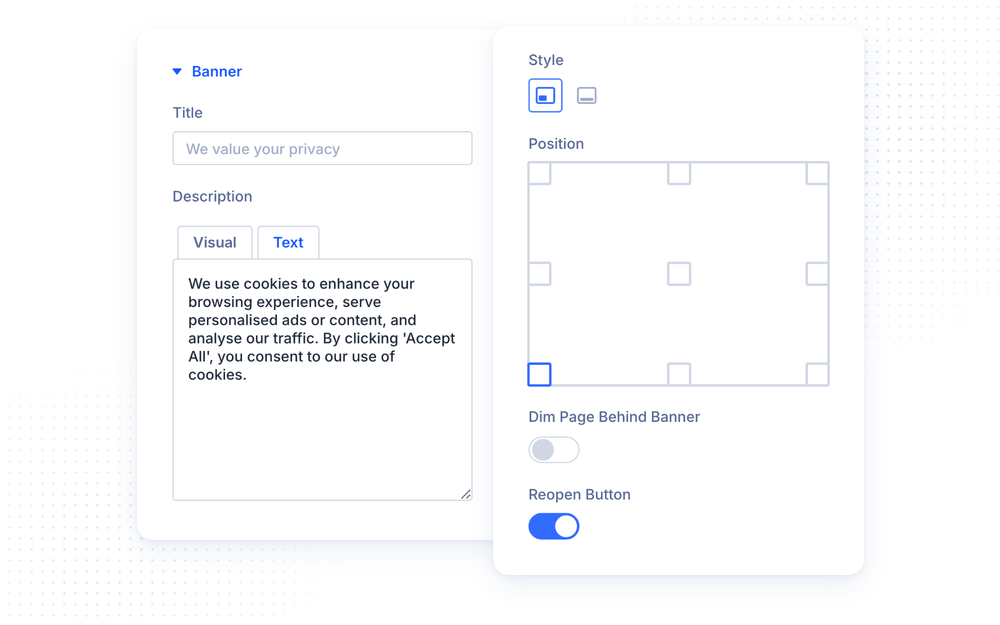
The settings are organized like a Divi module, in a Content, a Design and an Advanced tab, with a search bar at the top. Click any text of the banner or the preference center on the canvas to edit it in place; the matching setting opens in the modal. Sizes have Tablet and Phone values and many colors have a Hover value, opened with Divi’s responsive and hover buttons next to the field. A Reset Group icon appears in a group’s title row as soon as one of its settings differs from the default.
Content: Banner
- Title sets the banner heading. Default: “We value your privacy”
- Description sets the banner text, with formatting such as bold text and links
- Style shows the consent prompt as a Banner (a box) or a Bar (full width)
- Position places the banner: Bottom Left, Bottom Center, Bottom Right, Top Left, Top Center, Top Right, Center Left, Center or Center Right
- Dim Page Behind Banner dims the page, which can only be used after the visitor decides. The banner’s close button is hidden
- Reopen Button shows a floating cookie button that brings the banner back after a decision (on by default). Visitors can also reopen their settings with the
[dipi_cookie_preferences]shortcode, for example in the footer
NOTE: The banner’s X button only closes the banner. It does not record a choice, so the banner comes back on the next page while the visitor has not decided.
Content: Preference Center
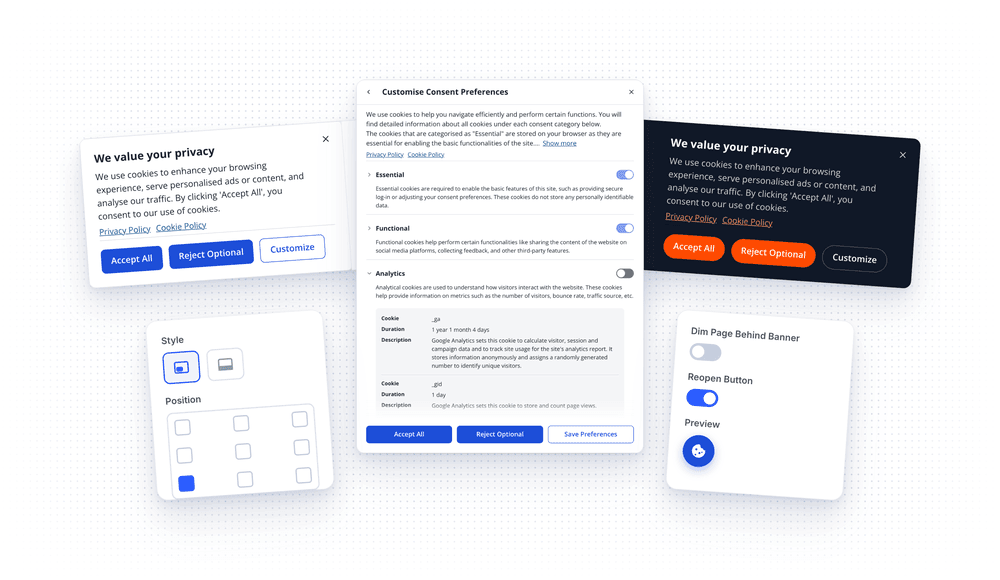
- Title sets the preference center heading. Default: “Customise Consent Preferences”
- Description sets the introduction text, with formatting
- Show More Label and Show Less Label set the link that expands and collapses a long description
- Dim Page Behind Preference Center dims the page while the preference center is open (on by default)
Content: Buttons
- Accept Button sets the label of the button that accepts all categories. Default: “Accept All”
- Reject Button sets the label of the button that rejects all optional categories. Default: “Reject Optional”
- Customize Button sets the label of the button that opens the preference center. Default: “Customize”
- Save Button sets the label of the button that saves the choices in the preference center. Default: “Save Preferences”
Accept All and Reject Optional are always shown together on the banner.
Content: Policy Links
- Privacy Policy URL and Privacy Policy Label add a link to your privacy policy
- Cookie Policy URL and Cookie Policy Label add a link to your cookie policy
- Open in New Tab opens both links in a new tab (on by default)
Content: Categories
- Hide Empty Categories leaves out optional categories that nothing uses: no declared cookie, no consent-gated script and no integration under Advanced that requires consent for it
- Essential Name, Functional Name, Analytics Name and Marketing Name rename the categories
- Essential Description, Functional Description, Analytics Description and Marketing Description set the text shown under each category, with formatting
- Essential Always Active, Functional Always Active, Analytics Always Active and Marketing Always Active lock the visitor’s switch for a category, so it counts as accepted without asking. On by default for Essential and Functional, off for Analytics and Marketing
NOTE: If you make Analytics or Marketing always active, their scripts run without asking. Under the GDPR this is usually not allowed for this kind of cookie.
Content: Cookie Table Labels
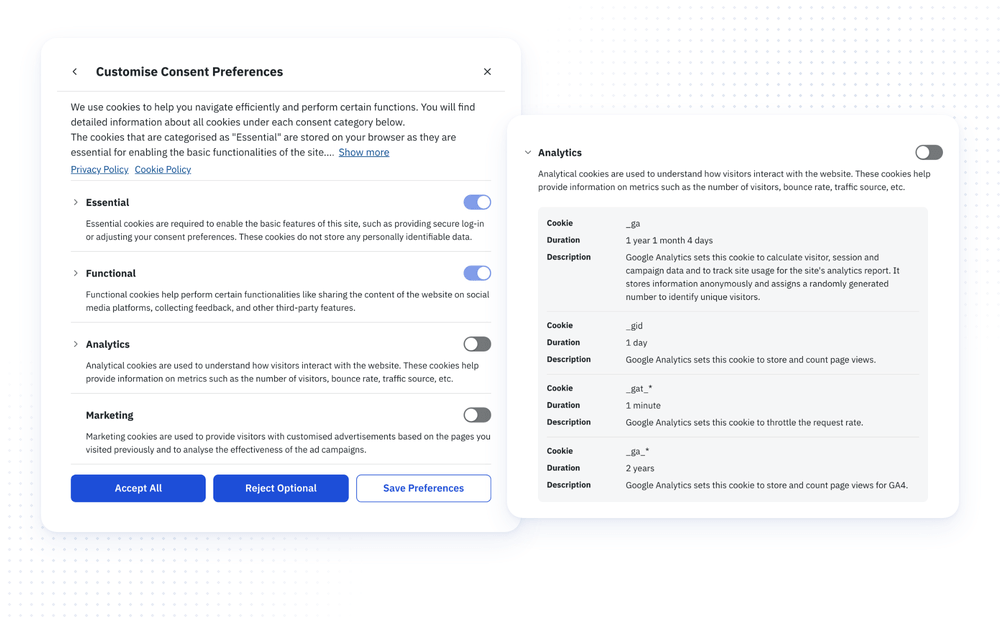
The preference center lists the cookies of your Cookie Declaration under their category. These settings rename the table columns:
- Cookie Column (default “Cookie”)
- Duration Column (default “Duration”)
- Description Column (default “Description”)
Design: Colors
- Background sets the background of the banner and the preference center
- Link sets the link color, with a hover color
- Overlay sets the color that dims the page while one of the dim options is on
Design: Layout
- Corner Radius rounds the corners of the banner and the preference center
- Banner Max Width limits the width of the banner (Banner style only)
- Preference Center Width sets the width of the preference center
- Preference Center Animation opens the preference center with Fade, Fade + Slide Up, Fade + Slide Down, Zoom or None
- Preference Center Buttons arranges its buttons Responsive, Horizontal or Stacked
Design: Text
The Text group has three tabs:
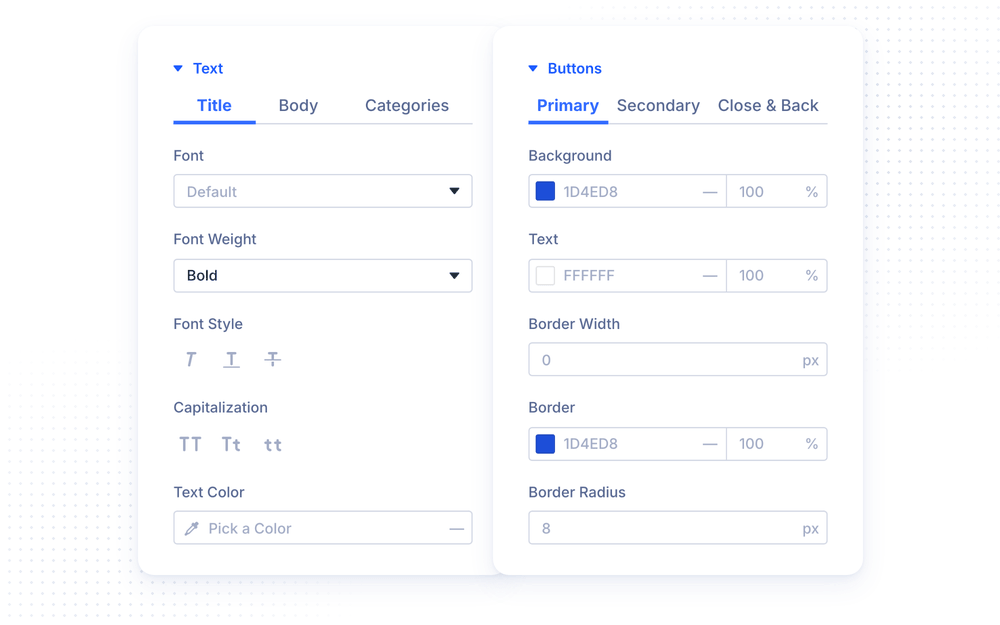
- Title styles the headings of the banner and the preference center: Font (empty uses the body font), Font Weight, Font Style, Capitalization, Text Color (empty uses the body text color), Text Size, Letter Spacing and Line Height
- Body styles all other text: Font (empty uses the theme font), Font Weight, Font Style, Text Color, Text Size, Letter Spacing and Line Height
- Categories styles the category names and descriptions in the preference center: Font Weight, Font Style, Capitalization, Name Size and Description Size
Design: Policy Links
- Alignment places the policy links Left, Center, Right or with Space Between
- Margin and Padding set the spacing of the links row
- Gap sets the space between the links
Design: Buttons
The Buttons group has three tabs:
- Primary styles Accept All and Reject Optional: Background and Text (each with a hover color), Border Width, Border, Border Radius, Font, Font Weight, Font Style, Capitalization, Text Size and Letter Spacing
- Secondary styles Customize and Save Preferences (outlined by default), with the same settings as Primary
- Close & Back styles the close (X) and back buttons: Icon Color and Background (each with a hover color), Border Width, Border, Border Radius, Size and Icon Size
Design: Toggle Switches
- On, Off and Knob set the colors of the category switches in the preference center
Design: Reopen Button
These settings appear while the Reopen Button is on:
- Use Image shows an uploaded Image instead of an icon
- Icon picks the icon. Empty shows a cookie
- Background and Icon Color set the button colors, each with a hover color
- Size, Icon Size and Border Radius set the button’s size and shape
Advanced: Consent
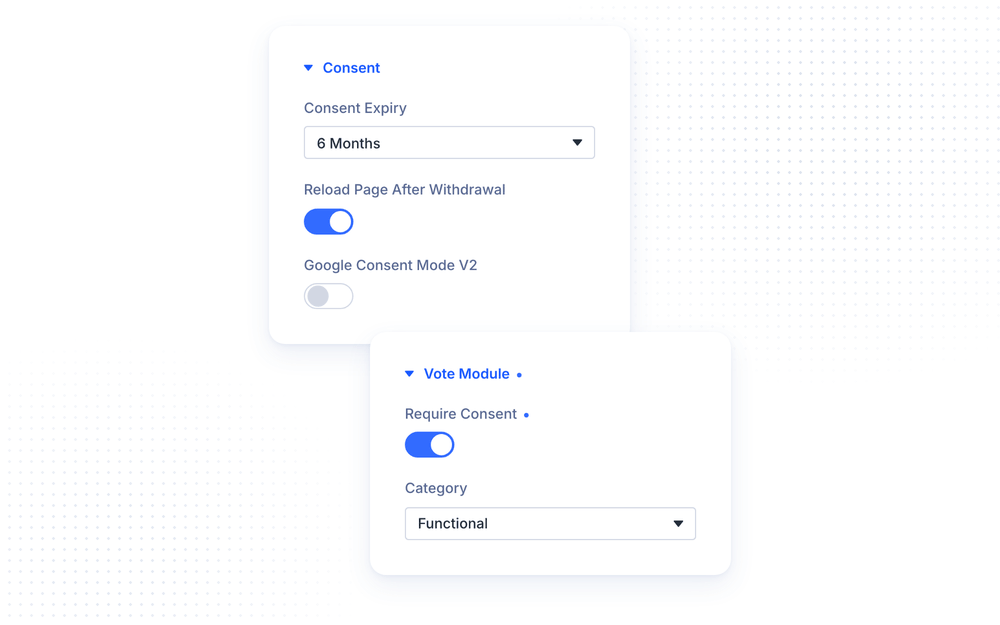
- Consent Expiry sets how long a visitor’s choice is stored before the banner asks again: 1 Month, 3 Months, 6 Months (default) or 12 Months
- Reload Page After Withdrawal reloads the page when a visitor withdraws consent, so blocked content and scripts return to their unconsented state (on by default)
- Google Consent Mode v2 sets Consent Mode v2 defaults before any Google tag loads and updates them when the visitor decides (off by default, see below)
Advanced: Vote Module, Countdown Module and YouTube Embeds
Each integration has its own group with the same two settings:
- Require Consent holds the integration back until the visitor consents (off by default)
- Category picks the category the integration waits for. It appears once Require Consent is on. Defaults: Functional for the Vote Module and the Countdown Module, Marketing for YouTube Embeds
See Integrations below for what each one does.
Cookie Declaration
The Cookie List box under Divi → Divi Pixel → Site → Cookie Consent holds the Cookie Declaration: the cookies your site uses. Each row also appears under its category in the preference center, and the whole list is published with the [dipi_cookie_declaration] shortcode.
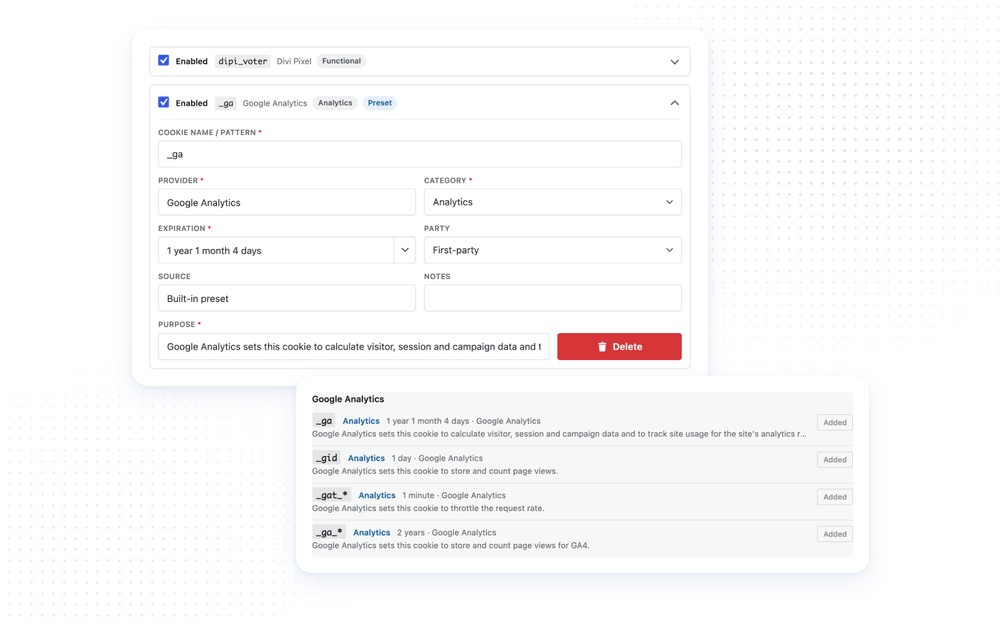
Open Cookie list to see the rows. Each row shows its name, provider and category, and opens with a click; Expand all and Collapse all open or close every row. Add cookie adds an empty row. Every row has these fields:
- Enabled publishes the row. Uncheck it to keep a row in the editor without publishing it
- Cookie name / pattern \* is the cookie name, for example
_gaor_ga_*. Names must be unique - Provider \* is who sets the cookie
- Category \* is Essential, Functional, Analytics or Marketing
- Expiration \* is free text. The arrow inside the field offers common durations: Session, 1 minute, 1 hour, 1 day, 7 days, 30 days, 3 months, 6 months, 1 year and 2 years
- Party is First-party or Third-party (optional)
- Source and Notes are optional
- Purpose \* describes what the cookie does
- Delete removes the row
Fields marked with \* are required. Saving is blocked while an enabled row misses one of them or uses a name twice: the field is highlighted, a message names the problem, and the first problem gets the focus.
Defaults. Until you save the list for the first time, it is pre-filled with the cookies Divi Pixel itself sets (dipi_consent, the four wp_consent_* cookies, dipi_vtok and dipi_voter) and the Google Analytics cookies (_ga, _gid, _gat_*, _ga_*). These are ordinary rows: uncheck Enabled or delete the Google Analytics rows if your site does not use Google Analytics. The Countdown module’s cookie name is set per module, so add it yourself if you use a Countdown that remembers visitors.
Preset library. Open Cookie preset library – Analytics & Marketing for ready-made rows for Google Analytics, Google Ads, Meta Pixel, Microsoft Advertising, Microsoft Clarity, Hotjar, LinkedIn Ads, TikTok Ads and YouTube. Click Add next to a cookie to add it as an editable row. The YouTube presets follow the Category of the YouTube Embeds integration.
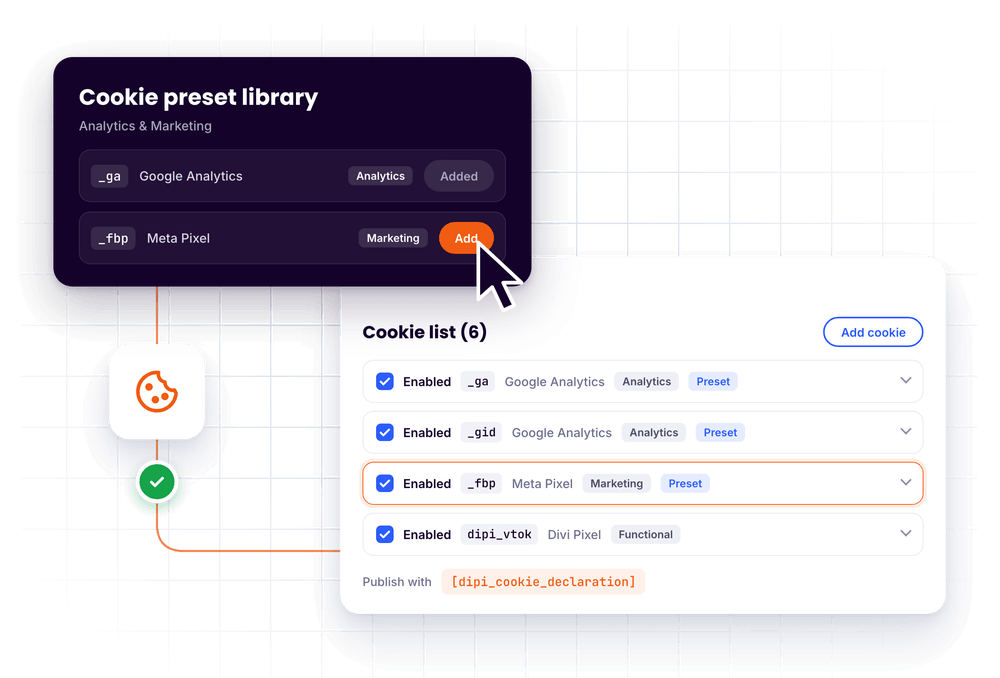
Detected cookies. While you browse your own site logged in as an administrator, the feature notes the names of the cookies your browser can see (never their values). They appear in the editor as suggestions with the source “Detected”, with a category, duration and purpose when the name is known from the preset library. Review them before saving. Detection only sees cookies readable by JavaScript on pages you actually visit: HttpOnly cookies, cookies set by the server and third-party cookies are not detected. Detected suggestions are cleared when you save, and a deleted row is not suggested again.
NOTE: The Cookie Declaration is documentation only. Presets and detected rows are starting points, not proof: verify each name, purpose and duration for your site. The list does not detect, classify or block cookies, and it does not change consent behavior.
Scripts
The Scripts box holds tracking codes and other scripts that may only run with consent, for example Google Tag Manager, Google Analytics or the Meta Pixel. Paste the snippet exactly as the provider gives it and pick its category: it only loads after the visitor consents to that category, and again on later page views.
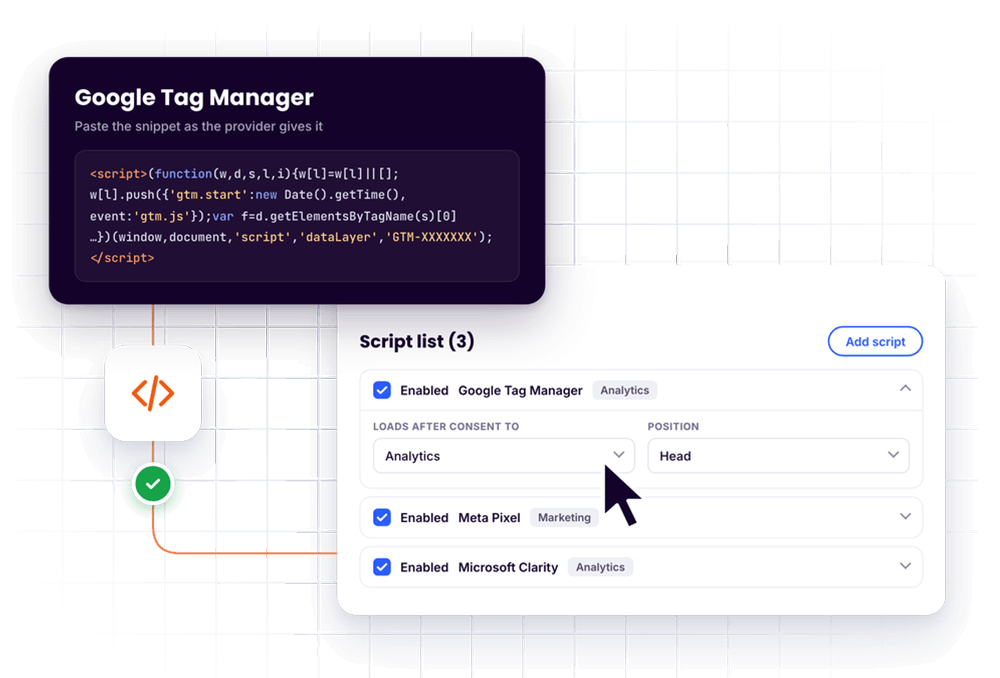
Open Script list and click Add script. Every row has these fields:
- Enabled turns the script on or off
- Name is a label for you, for example “Google Tag Manager”
- Loads after consent to picks the category the script waits for (default Analytics). Essential is always granted, so an Essential script loads for every visitor
- Position prints the script in the page Head (default) or Footer
- Code is the snippet
- Delete removes the row
How snippets are held back. Every <script> tag of the snippet is printed as an inactive placeholder and only turns into a real script once the visitor consents to its category. Code without a <script> tag is treated as inline JavaScript. Anything outside <script> tags, such as a <noscript> fallback, is left out. Rows without code are removed when you save. The scripts are not printed in the Visual Builder.
NOTE: Only users who may add unfiltered HTML can change the scripts. On a multisite network, that is usually the network administrator; site administrators see the list read-only.
Shortcodes
[dipi_cookie_preferences]adds a button that opens the preference center, for example in the footer next to your privacy policy link. Attributes:label(default “Customize”) andclassfor your own CSS class. Example:[dipi_cookie_preferences label="Cookie Settings"][dipi_cookie_declaration]shows the enabled rows of the Cookie Declaration as a table with the columns Cookie, Provider, Purpose, Category, Expiration and Type, plus Source and Notes when a row uses them. The optionaltitleattribute adds a heading above the table. The table ends with a note that the list is maintained by the site owner and does not mean every cookie was detected, classified or blocked. It shows nothing while the list is empty
Integrations
- Vote and Poll modules. With Require Consent on in the Vote Module group, the voter cookie (
dipi_vtok, plus thedipi_voterflag) is only set while the group’s Category (Functional by default) is granted. The Poll module follows the same setting. Without it, votes still count, but the visitor is recognized by a hashed IP address instead, so everyone on the same network counts as one voter per item. Withdrawing consent deletes both cookies - Countdown module. A countdown that remembers each visitor (use cookie) only reads and writes its cookie while the integration’s category is granted. Without it, the countdown still runs but restarts on every visit. Withdrawing consent deletes the cookie
- YouTube videos in the Pixel Panorama module. With Require Consent on, the video is replaced by a Click to load placeholder. Nothing is loaded from YouTube until the visitor clicks it or consents to the integration’s category. A click loads only that one video
- Google Maps is not held back in this version. The Divi Map module loads its map directly, which cannot be blocked reliably
When an integration’s Require Consent setting is off, it works exactly as it did before this feature existed.
Google Consent Mode v2
Turn on Google Consent Mode v2 in the Consent group of the Advanced tab. The feature then sets all signals to their default before any Google tag loads and sends an update whenever the visitor decides:
| Category | Consent Mode signals | Default without consent |
|---|---|---|
| Essential | functionality_storage, security_storage | granted |
| Functional | personalization_storage | denied |
| Analytics | analytics_storage | denied |
| Marketing | ad_storage, ad_user_data, ad_personalization | denied |
NOTE: Consent Mode only tells Google tags what the visitor allowed. It does not block scripts. To hold back the Google tag itself, add it under Scripts.
WordPress Consent API
When the WP Consent API plugin is active, the feature keeps its consent cookies (wp_consent_<type>) in sync, so other plugins that use the API see the visitor’s choice:
| Cookie Consent category | WP Consent API type |
|---|---|
| Functional | functional, preferences |
| Analytics | statistics |
| Marketing | marketing |
| Essential | no matching type, always allowed |
statistics-anonymous is never granted. The feature declares the consent type optin, unless another consent plugin already set one. The wp_consent_* cookies use the API’s own lifetime (30 days by default).
For Developers
The engine exposes a JavaScript API as window.dipiConsent:
window.dipiConsent.has('analytics');        // true or false
window.dipiConsent.get();                   // { essential, functional, analytics, marketing }
window.dipiConsent.acceptAll();
window.dipiConsent.rejectOptional();
window.dipiConsent.save({ analytics: true, marketing: false });
window.dipiConsent.withdraw(['analytics']);
window.dipiConsent.onChange(function (consent) { /* ... */ }); // returns an unsubscribe function
window.dipiConsent.openPreferences();
window.dipiConsent.registerCookie('my_cookie', 'functional'); // deleted when the category is withdrawn
registerCookie() accepts the three optional categories only.
To hold back your own script, print it as a placeholder with type="text/plain" and the category in data-dipi-consent:
<script type="text/plain"
        data-dipi-consent="analytics"
        data-dipi-src="https://example.com/analytics.js"></script>
When the category is granted, the placeholder becomes a real script, keeping async, defer, integrity, crossorigin and data-* attributes. Inline code works too. Placeholders added to the page later are picked up automatically, and each script runs at most once. An unknown category keeps the script inactive.
Every change of the visitor’s choice also fires a dipi-consent-change event on document, with the consent object as detail:
document.addEventListener('dipi-consent-change', function (event) {
    console.log(event.detail.analytics);
});
Limitations
- Only the integrations and scripts described above are held back. Scripts, pixels, embeds and media from other plugins or hardcoded in your theme are not blocked automatically
- Google Maps is not held back, and the Google Places request for testimonial reviews runs on the server and is not held back either
- Google Fonts loaded by Divi are not changed
- A script printed very early in the page head (before the feature’s own code) can run before the consent defaults are set
- JavaScript that already ran cannot be unloaded, and third-party cookies cannot be deleted
- The Cookie Declaration is maintained by hand. There is no automatic cookie scanner and no automatic classification of unknown cookies
- The current decision and its timestamps are stored in the visitor’s browser only. There is no server-side consent log, so it is not tamper-proof evidence
- The banner and its settings are available for Divi 5 only
Is something missing for your site? Send us a feature request through our support, and we will consider it for a future version.
Design Ideas
- Discreet corner box uses the Banner style at Bottom Left, a small Banner Max Width, the Reopen Button with your brand color and the
[dipi_cookie_preferences]shortcode in the footer. - Full-width bar uses the Bar style at the bottom with a dark Background, light Body text and an outlined Secondary button style for Customize.
- Decision first turns on Dim Page Behind Banner with the Center position, so visitors decide before they use the page.
- Brand match sets the Title font to your heading font, the Primary buttons to your accent color with a darker hover color, and the Toggle Switches to the same accent color.
- Privacy page adds
[dipi_cookie_declaration title="Cookies on this site"]to your cookie policy page and links it with Cookie Policy URL.