
Layout Library
Meet the Divi Pixel Layout Library! Build your Divi 5 website from finished designs instead of a blank page. The Layout Library puts every Divi Pixel layout pack right inside the Divi Visual Builder and the Divi Pixel dashboard: more than 50 complete website designs with hundreds of pages and thousands of sections. Add one section to the page you’re working on, load a full page, or import a whole website with its menus, templates and settings. There’s no separate importer plugin and no files to download. Everything you import is regular Divi 5 content that you can edit like anything else on your page.
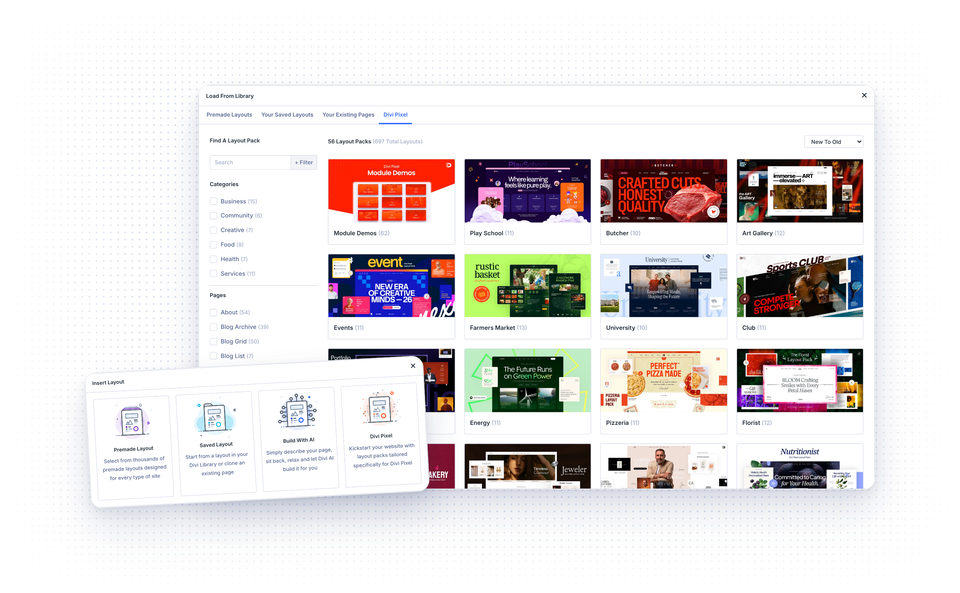
With the Layout Library you can:
- Import a whole layout pack, with all its pages, menus, Theme Builder templates and settings
- Add a full page from any layout pack to the page you’re editing
- Add a single section exactly where you need it
- Preview pages and sections before you add them
- Choose which design assets come along with a layout
NOTE: The Layout Library needs Divi 5 and Divi Pixel 2.58.0 or newer. It replaces the old Divi Pixel Layout Importer plugin, which you no longer need on Divi 5.
Import a Whole Layout Pack
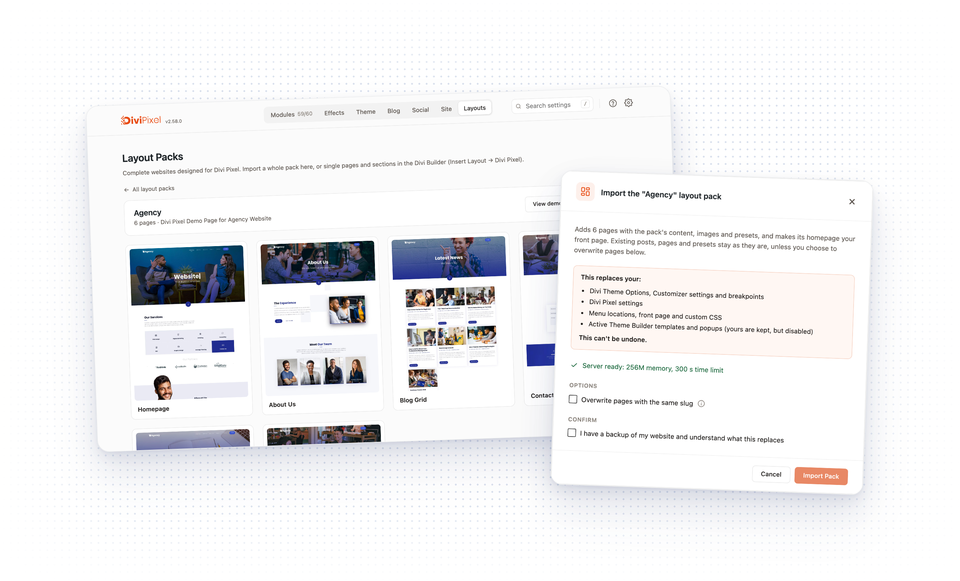
Import Pack turns a fresh WordPress install into a complete copy of the demo website. It runs from the Divi Pixel dashboard.
- Go to Divi → Divi Pixel and click Layouts in the top bar
- Pick a category or search to find a layout pack, then open it
- Browse its pages with the arrow keys, or click View demo to open the live demo
- Click Import Pack
- Read the list of settings the import replaces, tick I have a backup of my website and understand what this replaces and click Import Pack
- Keep the window open while the images download and the content is created
What Import Pack Adds
- All pages of the pack, and its homepage set as your front page
- Blog posts, projects, testimonials, FAQ entries and popups
- Menus and Theme Builder templates
- Presets, global colors, global variables, Divi Library layouts and off-canvas content
- All images, downloaded to your Media Library
What Import Pack Replaces
The pack’s site settings replace yours, so the result looks like the demo. The dialog lists them before you start:
- Divi Theme Options, Customizer settings and builder breakpoints
- Divi Pixel settings
- Menu locations, front page and custom CSS
- Active Theme Builder templates and popups
Your existing posts, pages and presets stay as they are. Your Theme Builder templates and popups are kept, but disabled. Your license and API keys are never touched.
Pages of the pack get a new slug when your website already has a page with the same slug (for example “about-2”). Turn on Overwrite pages with the same slug if you want the pack’s layout on your existing pages instead. Their previous content is kept as a revision if your website keeps revisions.
NOTE: Import Pack can’t be undone. Use it on a new website, or make a full backup of your website first. On a live website, add single pages or sections from the Visual Builder instead.
Only administrators can import a whole layout pack.
Add a Page in the Visual Builder
- Open a page in the Divi Visual Builder
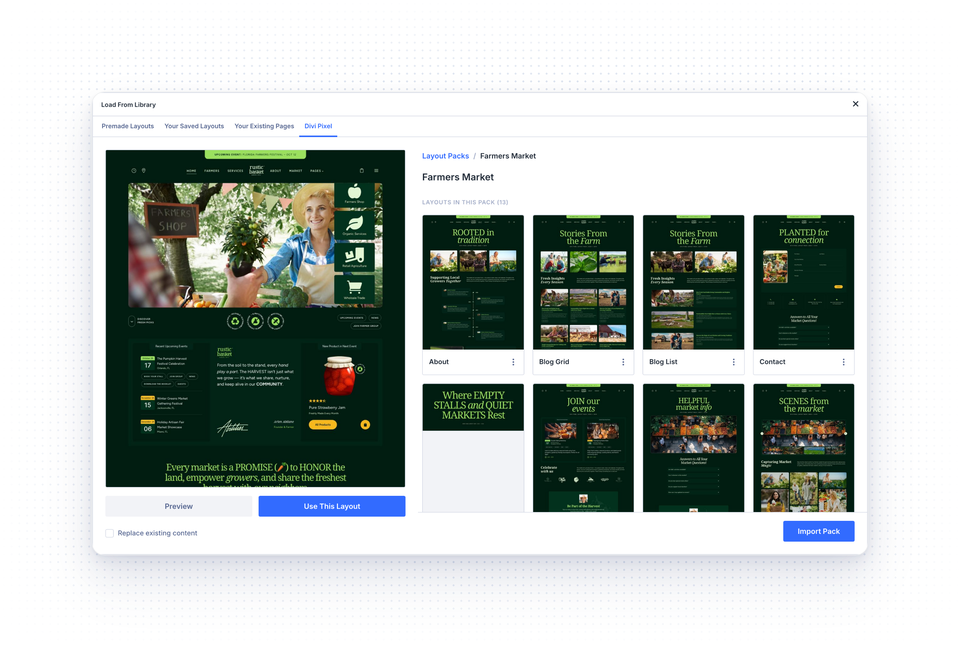
- On a new page, choose Insert Layout and click Divi Pixel. On a page that already has content, open Load From Library and click the Divi Pixel tab
- Search or pick a category to find a layout pack, then open it
- Pick a page. Move the cursor over a page card to scroll through its screenshot
- Click Preview to see the page on your own website, in Divi’s preview window. Nothing is added to your website
- Click Use This Layout to import the whole page
The layout is added below the content of your page. Turn on Replace existing content to replace your page’s content with the layout instead.
Want only part of a page? Click View Sections and pick the sections you need.
Add a Section in the Visual Builder
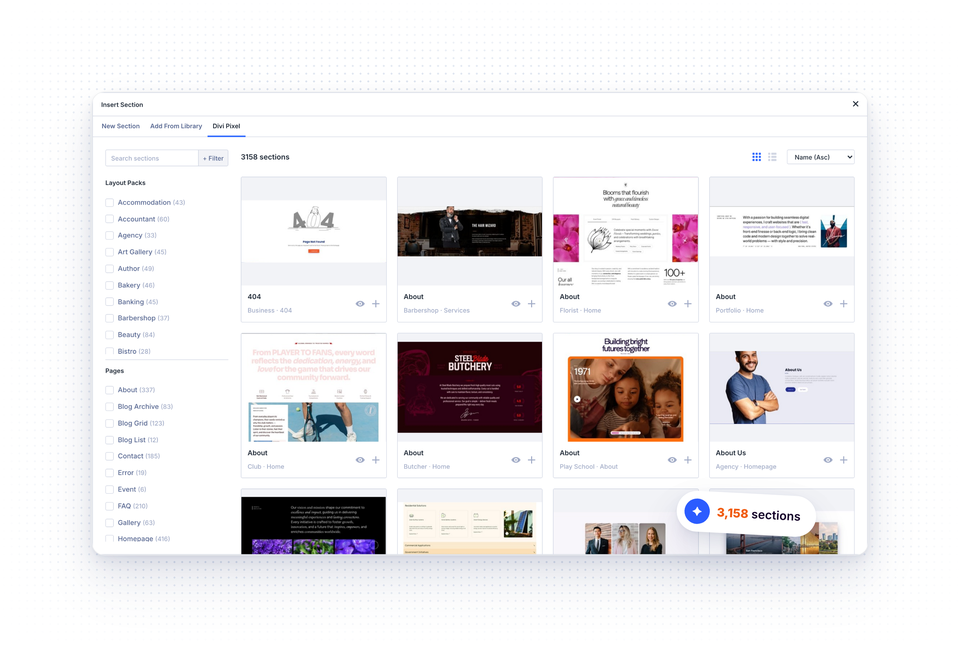
- Click the + button where you want to add a section
- Click the Divi Pixel tab
- Find a section with search and the filters
- Click Preview to see the section at full size, or click Insert to add it
The section is added exactly where you clicked.
Finding Sections
- Search – searches all sections by name, page, layout pack and the Divi Pixel modules they use
- Layout Pack – shows the sections of one or more layout packs
- Page – shows sections from one kind of page, like About, Contact or Blog
- Filter – shows only the sections that use a specific Divi Pixel module
- Sort – sorts sections from new to old, old to new, by name or by layout pack
- Grid view / List view – switches between visual cards and a compact list
Divi Pixel remembers your view and sort order.
Design Assets
Most Divi Pixel layouts use plain colors and styles, so they drop into your page as they are. If a page or section brings its own design assets, the Import Design Assets? dialog asks which of them to import. It only lists the assets the layout actually uses:
- Import presets – otherwise their styles are applied to the modules directly
- Import global colors – otherwise they become static colors
- Import global variables – otherwise they become static values
- Import Divi Library layouts – otherwise the modules that show them (like tabs, toggles, carousel slides or hotspots) stay empty
- Import off-canvas content – otherwise elements that open it do nothing
Divi Library layouts are created once. When you import another page that uses the same layout, Divi Pixel reuses it instead of creating a copy.
Images
Every image of a layout is downloaded to your own Media Library during the import, so nothing on your website loads from our demo server. Replace them with your own images like you would in any other Divi module.
Permissions
- Adding pages and sections in the builder needs the Divi Portability permission (Divi → Role Editor)
- Importing a whole layout pack needs an administrator account
Server Requirements
Before Import Pack starts, the dialog checks your server and shows Server ready or a warning. For a whole layout pack we recommend:
- memory_limit 256M
- max_execution_time 300
Images download in small rounds with a progress bar, so a large pack doesn’t depend on one long request. Single pages and sections import fine with the WordPress defaults.
Troubleshooting
- “The Divi Pixel layout server could not be reached” – your server could not connect to demo.divi-pixel.com. Try again in a few minutes. If it keeps happening, ask your host whether outgoing connections are blocked
- “This layout needs a newer version of Divi Pixel” – update Divi Pixel from Dashboard → Updates
- “You are not allowed to import layouts” – ask an administrator to give your role the Divi Portability permission
- Import Pack stops halfway – ask your host for at least memory_limit 256M and max_execution_time 300, then run the import again
- No Divi Pixel tab in the builder – make sure you are on Divi 5 and Divi Pixel 2.58.0 or newer
NOTE: Still on Divi 4? The Layout Library works with Divi 5 only. On Divi 4, use the legacy Divi Pixel Layout Importer plugin: go to Divi → Divi Pixel, click the gear icon, open Import/Export and click Install Importer.