
Tile Scroll
Meet the Pixel Tile Scroll module for Divi! Fill a section with rows of image tiles that glide sideways as the visitor scrolls — alternating directions, optional rotation, and a floating content box with your headline and button on top. A show-stopping hero or portfolio wall driven entirely by scroll.
With the Pixel Tile Scroll module you can:
- Build rows or columns of image tiles from simple image galleries
- Move the lines on scroll with alternating directions and a configurable move amount
- Rotate the whole tile grid for a dynamic diagonal look
- Float a content box (title, description, button) above the tiles, with optional background blur
- Add an overlay between the tiles and the content
How the module works
The Pixel Tile Scroll is a parent/child module. Each child item holds a gallery of images that becomes one line of tiles. As the visitor scrolls, the lines slide along the chosen axis — odd and even lines start from opposite directions, creating the signature counter-moving effect.
How to add the Tile Scroll module
- Open a page with the Divi Visual Builder
- Click the + (Add New Module) button
- Search for Pixel Tile Scroll and click it to insert the module
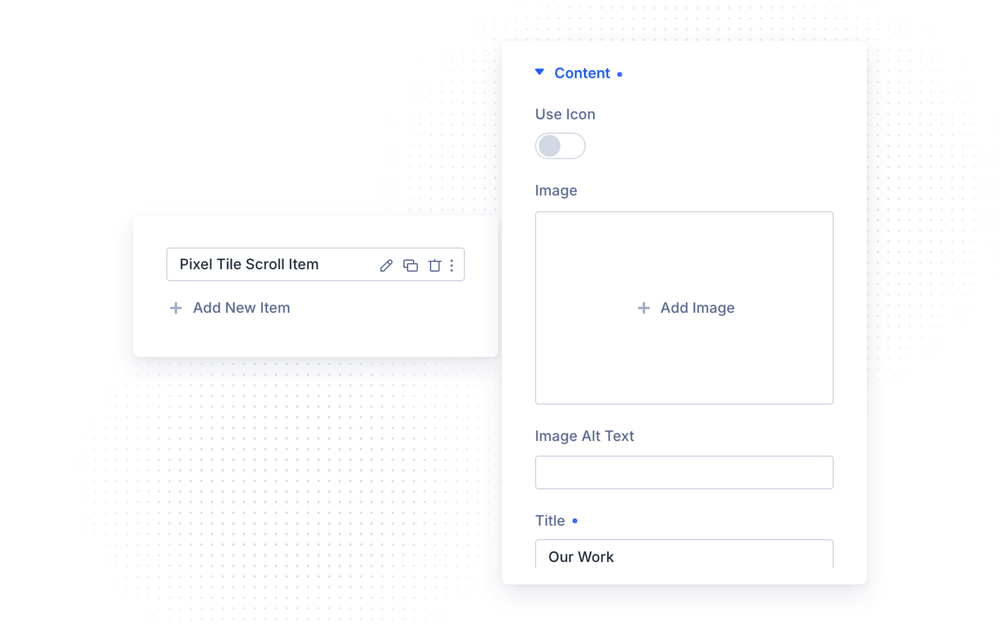
- Add a child item per tile line and fill its Images gallery
Content
The parent Content group holds the floating content box: Title, rich-text Description and an optional Button with its own link.
Settings
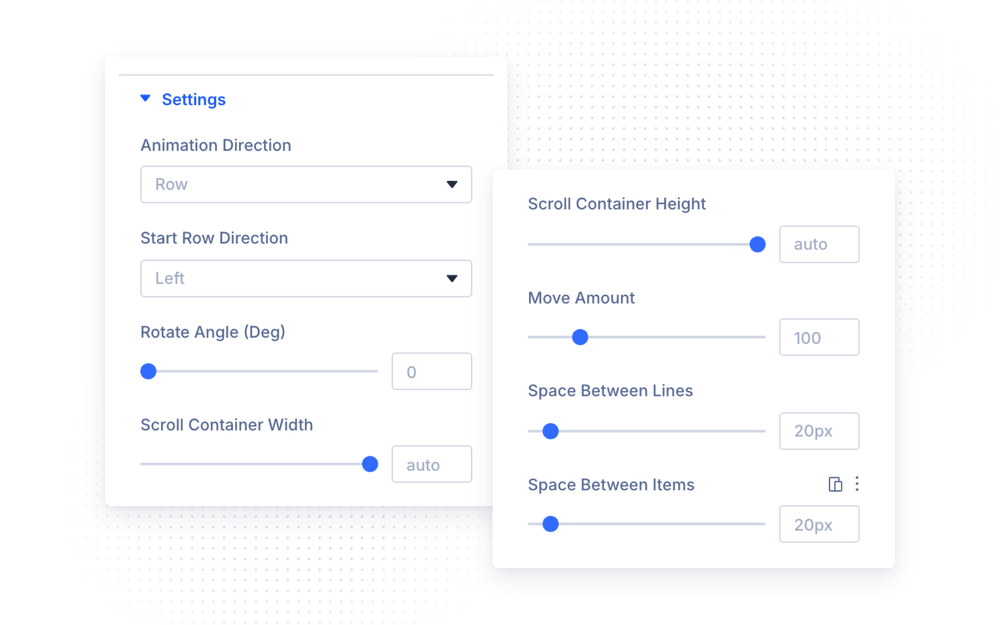
The Settings group controls the tile motion and layout:
- Animation Direction — tiles move in Rows (horizontal) or Columns (vertical)
- Start Row Direction / Start Column Direction — which way the first line moves (left/right, top/bottom); following lines alternate
- Rotate Angle — rotate the whole tile grid (0–360°) for diagonal compositions
- Move Amount — how many pixels a line travels while scrolling one full screen (default 100)
- Scroll Container Width / Height — the visible stage size
- Space between Lines / Space between Items — the gaps in the tile grid (default 20px)
Overlay
Enable Use Overlay to place a color or gradient overlay between the tiles and the content box — an easy way to keep the text readable over busy imagery.
Design Settings
- Content Container — Content Width, Content Height and Background Blur (0–30px) for a frosted-glass panel behind the text
- Content Image & Icon — icon color, background, size and alignment, plus a Circle Icon toggle
- Content Text / Content Button — typography and full button styling
- Each child item adds Image styling and Sizing for its tile line
The module also supports the standard Divi groups — Sizing, Spacing, Border, Box Shadow, Filters, Transform and Animation.
NOTE: The effect lives on scroll distance. Give the section enough height (Scroll Container Height) and keep Move Amount moderate — very high values make tiles fly past too quickly on short pages.
Design Ideas
- Portfolio hero — three rows of project shots, Move Amount 100, a centered content box with 10px Background Blur and a “See Our Work” button.
- Diagonal wall — Rotate Angle 10–15° with an overlay gradient and white heading for a modern agency landing.
- Vertical showcase — Animation Direction Column with tall images for a photography-style mosaic.