
QR Code
Meet the Pixel QR Code module for Divi! Turn any link, phone number, email address or Wi-Fi login into a QR code that matches your design. Pick the shape of the pattern and of the three corner eyes, color every layer with a solid color, gradient, image or video, put your logo in the middle, and wrap the code in a ready-made frame or your own frame image. The code is generated right on your site, with no QR service, no API and no account, so it never expires.
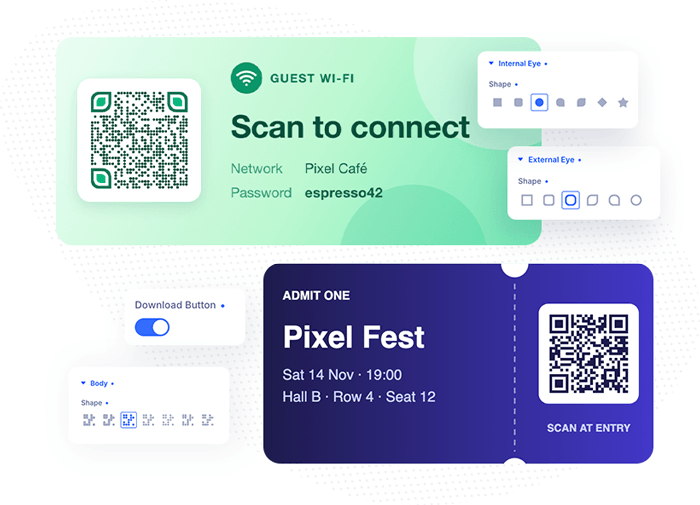
With the Pixel QR Code module you can:
- Encode a URL, phone number, email address, Wi-Fi login or any text, or fill it with Dynamic Content
- Choose from 7 body shapes, 6 outer eye shapes and 7 inner eye shapes
- Color the body, the outer eyes and the inner eyes separately with any Divi background: a color, a gradient, an image or a video
- Place your logo in the middle, with a size that always stays scannable
- Wrap the code in a built-in frame, with your own text like “Scan Me”, or in your own frame image
- Set the Scannability Level to make the code more robust or less cluttered
- Let visitors download the code as a PNG image with one click
How the module works
The QR code is generated in the visitor’s browser by the module’s own encoder, so nothing is sent to an outside service and the code never stops working. The Visual Builder and the front-end draw the code with the same script, so what you see while designing is exactly what your visitors scan.
The code is made of three layers: the body (the pattern of small modules), the outer eyes (the three large squares in the corners) and the inner eyes (the dots inside them). Each layer has its own shape and its own background, so you can style them separately.
How to add the QR Code module
- Open a page with the Divi Visual Builder
- Click the + (Add New Module) button
- Search for Pixel QR Code and click it to insert the module
- Type your link, phone number, email or Wi-Fi login into QR Code Content
- Style the shapes and colors in the Design tab and save the page
QR Code
The QR Code group in the Content tab holds what the code contains and how it behaves.
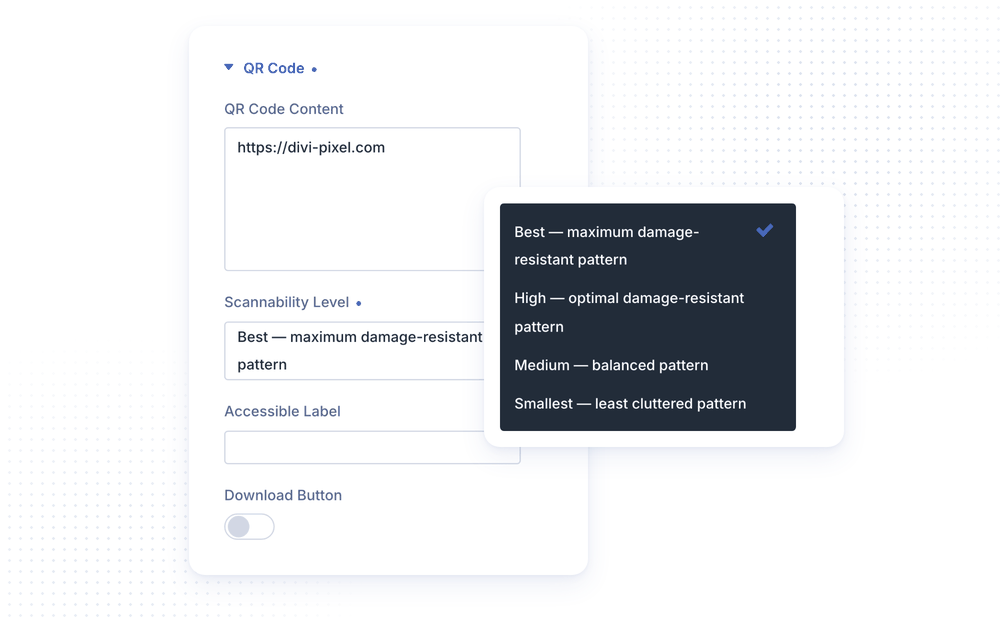
- QR Code Content is the text the code holds. Use a full URL (
https://…), a phone number (tel:+1234567890), an email address (mailto:[email protected]), a Wi-Fi login (WIFI:T:WPA;S:Network Name;P:password;;) or any plain text. The field supports Dynamic Content, so the code can take its content from your site, such as a custom field. - Scannability Level sets how much error correction the code carries: Smallest (the least cluttered pattern), Medium (balanced), High (the default) or Best (the most damage-resistant pattern). Higher levels let the code survive scratches, folds and a bigger logo, but make the pattern denser. Lower levels keep the code clean and easy to scan when it is printed small.
- Accessible Label is read to screen reader users instead of the code’s content. Use it to describe what the code does, like “Scan to see our menu”, rather than letting a long URL be read out. When it is empty, the content itself is used.
- Download Button shows a button on hover that saves the code as a PNG image (see below).
NOTE: A Wi-Fi code lets visitors join your network by scanning, without typing the password. Use
T:WPAfor WPA/WPA2 networks,T:WEPfor WEP orT:nopassfor an open network.
Logo
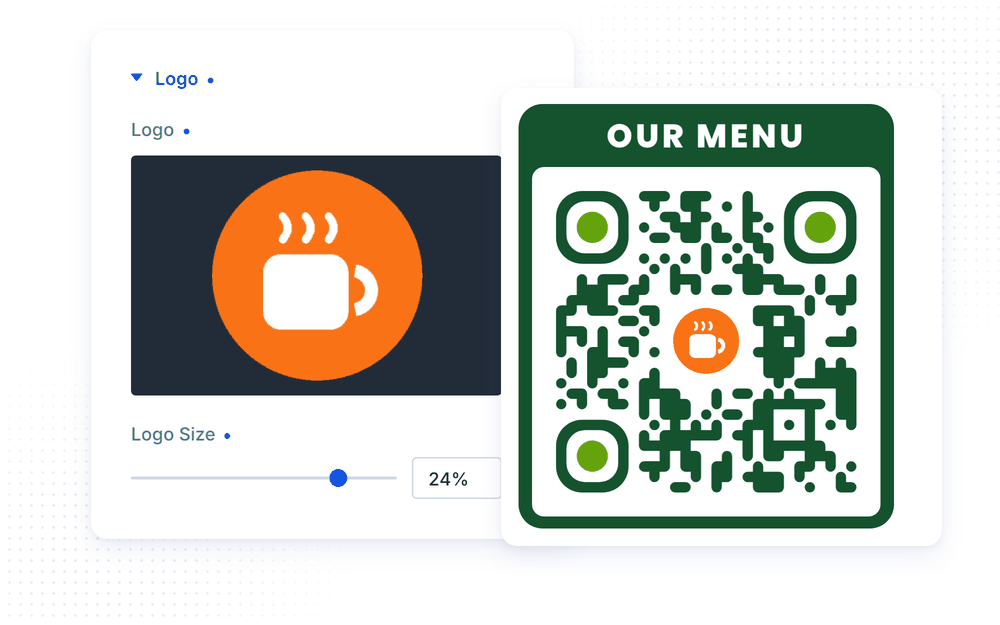
- Logo places an image in the middle of the code. The modules behind the logo are cleared, so the logo never covers part of the pattern.
- Logo Size sets the logo width as a share of the code. To keep the code readable, the size is capped by the Scannability Level: 15% on Smallest, 20% on Medium, 25% on High and 30% on Best. If your logo looks smaller than the value you set, raise the Scannability Level.
The Logo group in the Design tab adds the standard Divi image options for the logo, such as rounded corners, borders, box shadow and filters. A round logo on a square image, for example, just needs a 50% border radius.
Shapes and Colors
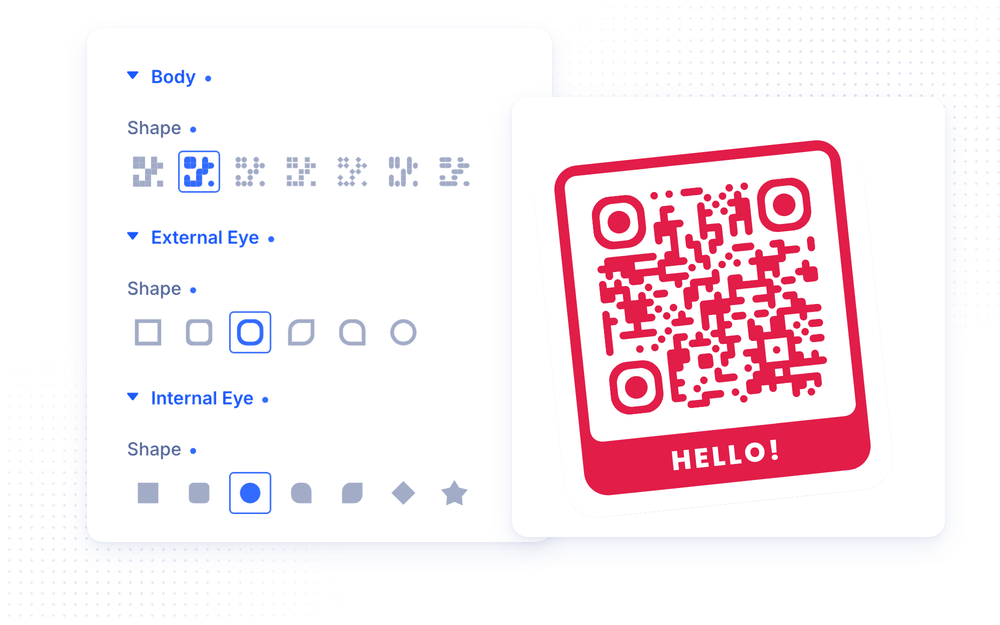
The Design tab has a group for each layer of the code: Body, External Eye and Internal Eye. Each one has a Shape and a Background.
- Body Shape sets the pattern: Square, Rounded, Dots, Small Squares, Diamonds, Vertical Lines or Horizontal Lines
- External Eye Shape sets the three large corner squares: Square, Rounded, Extra Rounded, Leaf, Drop or Circle
- Internal Eye Shape sets the dots inside them: Square, Rounded, Circle, Drop, Leaf, Diamond or Star
- Background colors the layer. It is a full Divi background, so each layer can be a solid color, a gradient, an image or even a video that shows through the shape of the code
The QR Code group in the Design tab styles the area around the code: its background, padding and border. A white background with some padding and rounded corners gives the classic card look, and leaves scanners a clear margin around the code.
NOTE: Phones read QR codes best with dark modules on a light background and enough contrast between them. A light pattern on a dark background, or two similar colors, may not scan on every device. Test the finished code with a few phones before you print it.
Frame
The Frame group in the Content tab wraps the code in a frame.
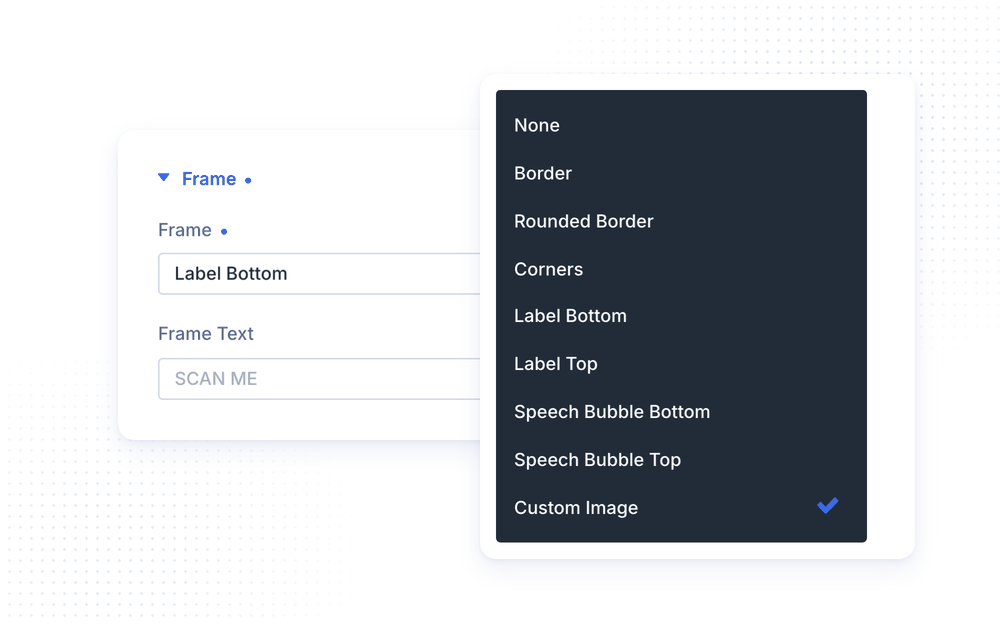
- Frame chooses the style: None, Border, Rounded Border, Corners, Label Bottom, Label Top, Speech Bubble Bottom, Speech Bubble Top or Custom Image
- Frame Text is the text on the label and speech bubble frames, like “SCAN ME” (the default), “Our Menu” or “Free Wi-Fi”. It supports Dynamic Content. It only appears for the Label and Speech Bubble frames
For the built-in frames, Frame Color in the Design tab › Frame sets the color of the frame, and the Frame Text design group styles the text with all the standard Divi font options.
Custom Image Frame
Set Frame to Custom Image to use your own design as the frame: a phone mockup, an event ticket, a poster, a business card or a product label.
- Frame Image is the image the code is placed on
- QR Code Size in Design › Frame sets the width of the code as a percentage of the frame image
- QR Code Horizontal Position and QR Code Vertical Position set where the center of the code sits on the frame image, also in percent
All three are responsive, so you can move or resize the code for tablets and phones. The Frame Image group in the Design tab adds the standard Divi image options, like rounded corners, borders, box shadow and filters.
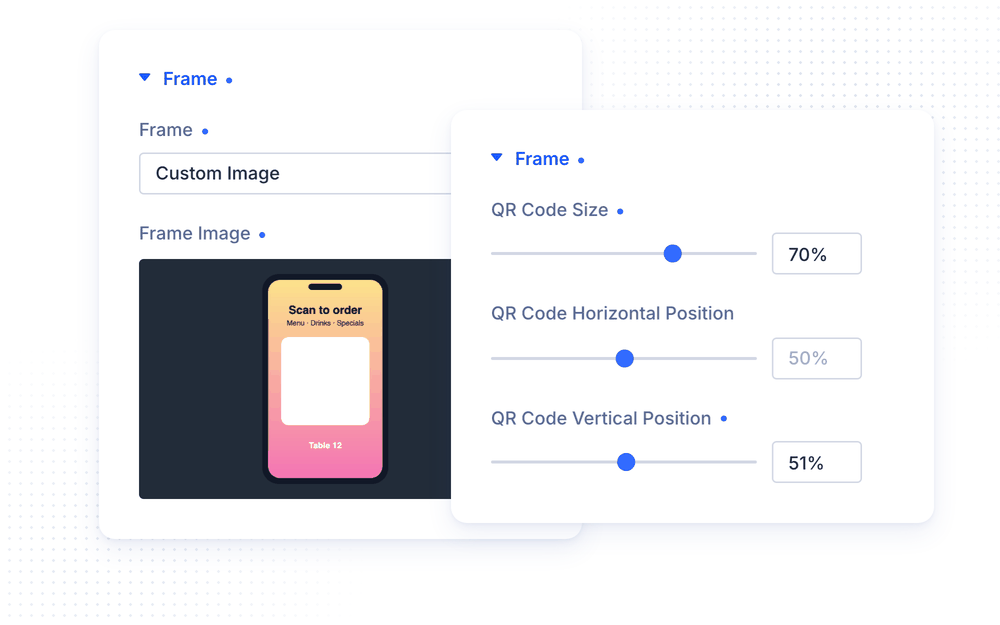
NOTE: Design your frame image with an empty, light area where the code will go, then match QR Code Size and the two positions to that area. On the demo’s event ticket, for example, the code is 23% wide and centered at 82.5% / 43.3%.
Download Button
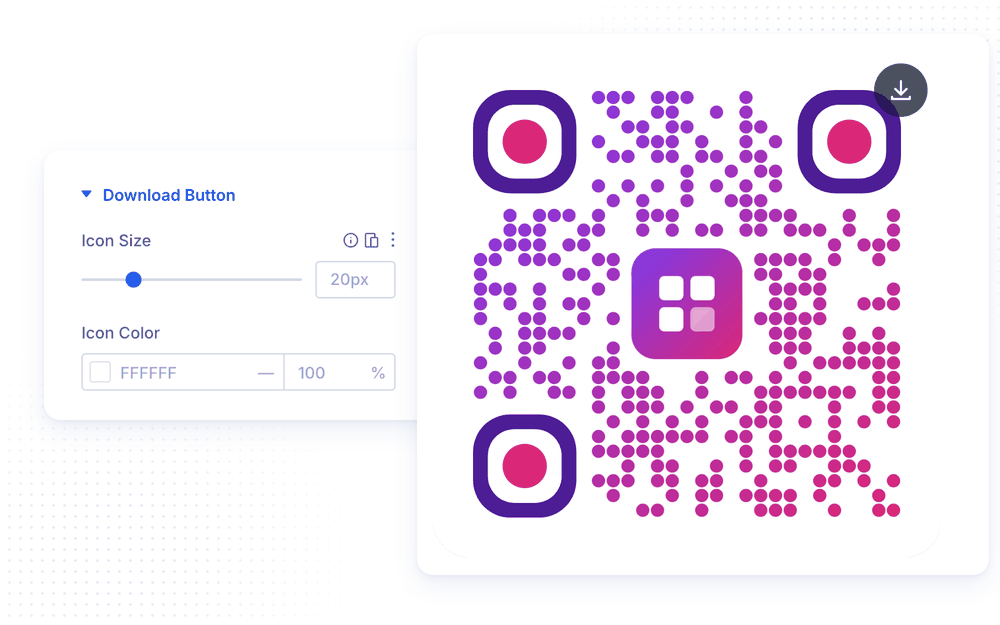
Turn on Download Button in the QR Code group to let visitors save the code. A small button appears when the visitor hovers over the code, and one click saves the whole module as a PNG image, including the frame, the frame text and the logo.
The Download Button group in the Design tab sets the Icon Size, Icon Color, background, border and spacing of the button, and Horizontal Alignment and Vertical Alignment place it in any corner or edge of the code. Combine the alignment with a margin to place it exactly where you want.
NOTE: The PNG is drawn from the module as it looks on the page. Box shadows, filters, background videos and radial gradients are left out of the downloaded image, and a radial gradient falls back to its first color.
Advanced Settings
The Advanced tab includes all standard Divi options: CSS ID & Classes, Custom CSS, Conditions, Visibility, Transitions, Position and Scroll Effects. The Custom CSS section has dedicated fields for the Frame, the QR Code, the Logo and the Frame Text.
Design Ideas
- Restaurant table card uses the Label Top frame with “Our Menu” as Frame Text, a dark green body with Rounded shapes and a coffee cup logo.
- Guest Wi-Fi card holds a Wi-Fi login on a Custom Image frame designed as a café card, with Dots for the body and Leaf eyes.
- Event ticket places a plain, square code on a ticket stub with a Custom Image frame, so the code looks printed on the ticket.
- Brand code fills the body with a purple-to-pink gradient, sets the inner eyes to your accent color, adds your logo in the middle and turns on the Download Button so visitors can save it.
- Social follow uses the Speech Bubble Bottom frame with “Follow Us” and your social network’s brand colors.