
Poll
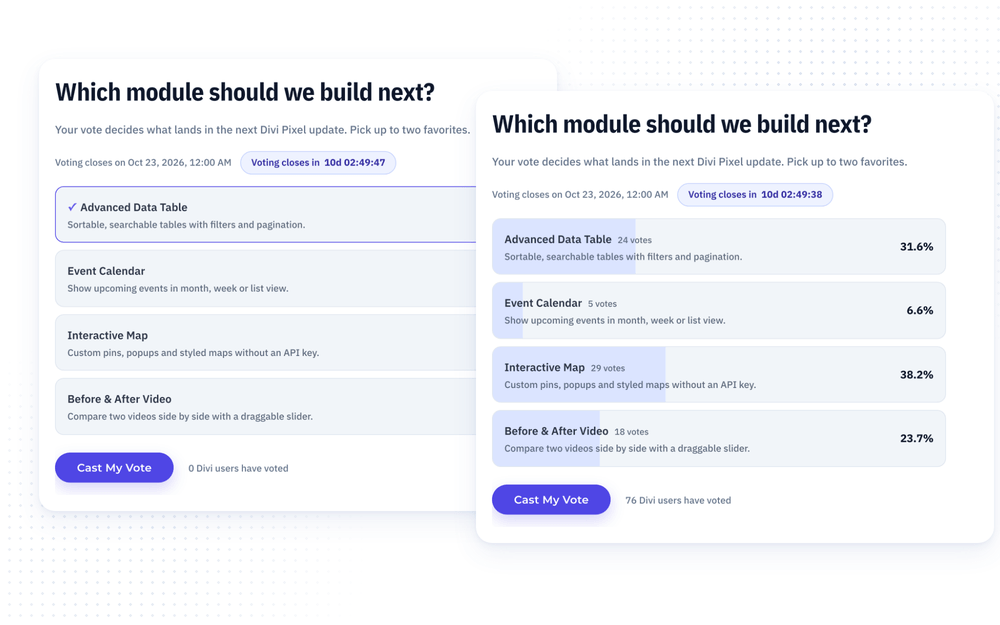
Meet the Pixel Poll module for Divi! Ask your visitors a question and let them answer with a single click. Find out which feature to build next, which product to launch, where the team retreat should go or what your readers want to read about. Results fill up with animated bars the moment someone votes, and a built-in schedule opens and closes voting on its own, with an optional countdown to the very last minute.
With the Pixel Poll module you can:
- Ask a question with Single Choice or Multiple Choice answers, each with an optional description and image
- Decide when visitors see the results: After Voting, Always, Before Voting or Never
- Show results as a card with a progress bar or as a row that fills up behind each answer
- Show percentages, vote counts and the total number of voters, with results that animate into view
- Open and close voting automatically on a schedule, with a countdown before voting ends
- Style the selected answer, the results, the button and every text in the Design tab
- Reset the votes of a whole poll, or of a single answer, right from the builder
How the module works
The Pixel Poll is a parent/child module. The parent module is the poll itself: the question, the voting rules, the schedule and the shared design of all answers. Each child item is one answer visitors can choose, with its own title, an optional description and an optional image.
Every visitor votes once per poll, and a vote is final. Votes are stored in your WordPress database, not in the page, so they survive page edits, and all counts and percentages are calculated on the server.
How to add the Poll module
- Open a page with the Divi Visual Builder
- Click the + (Add New Module) button
- Search for Pixel Poll and click it to insert the module
- Type your Question and, if you like, a short Description below it
- Click Add Option for every answer and give each one a title
- Save the page. Voting is live as soon as the page is published
Poll Settings
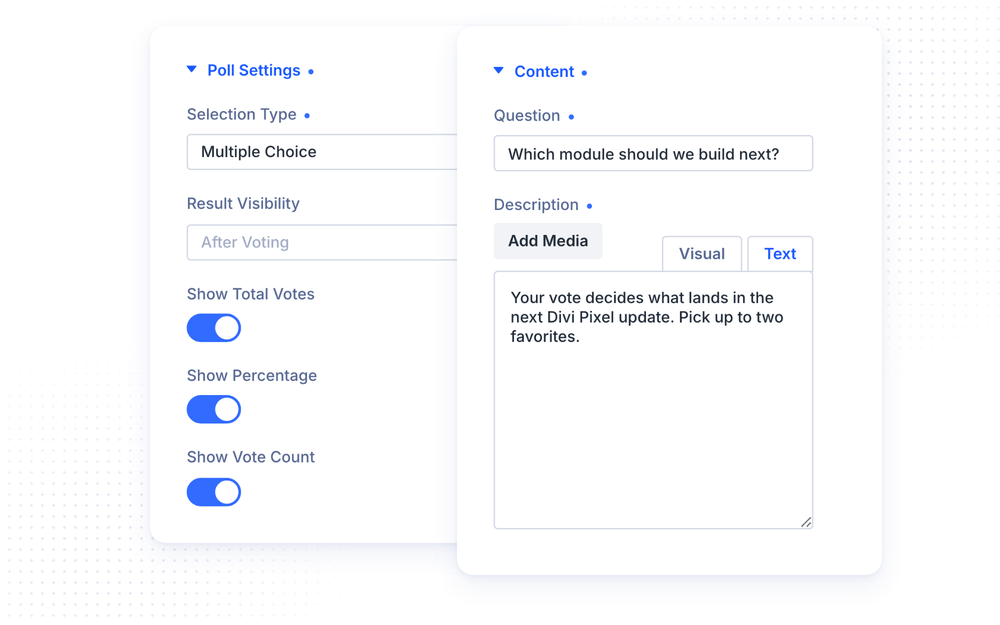
The Poll Settings group in the Content tab sets the rules of the poll:
- Selection Type lets visitors pick one answer (Single Choice, shown as radio buttons) or several answers (Multiple Choice, shown as checkboxes)
- Result Visibility decides when the results are shown (see below)
- Show Total Votes shows the number of people who have voted, next to the button
- Show Percentage shows each answer’s share of the voters as a percentage
- Show Vote Count shows the number of votes next to the percentage
Result Visibility has four options. They decide what a visitor sees before and after voting:
- After Voting (default) hides the results until the visitor has voted, so the current leader does not sway anyone
- Always shows the results to everyone, also before voting
- Before Voting shows the results until the visitor votes, then hides them
- Never hides the results from every visitor while voting runs
NOTE: Once a poll has closed (see Schedule), its final results are shown to every visitor, whatever the Result Visibility. When Show Percentage is off, the percentage is still read out to screen reader users, since the result bar itself carries no text.
Poll Options
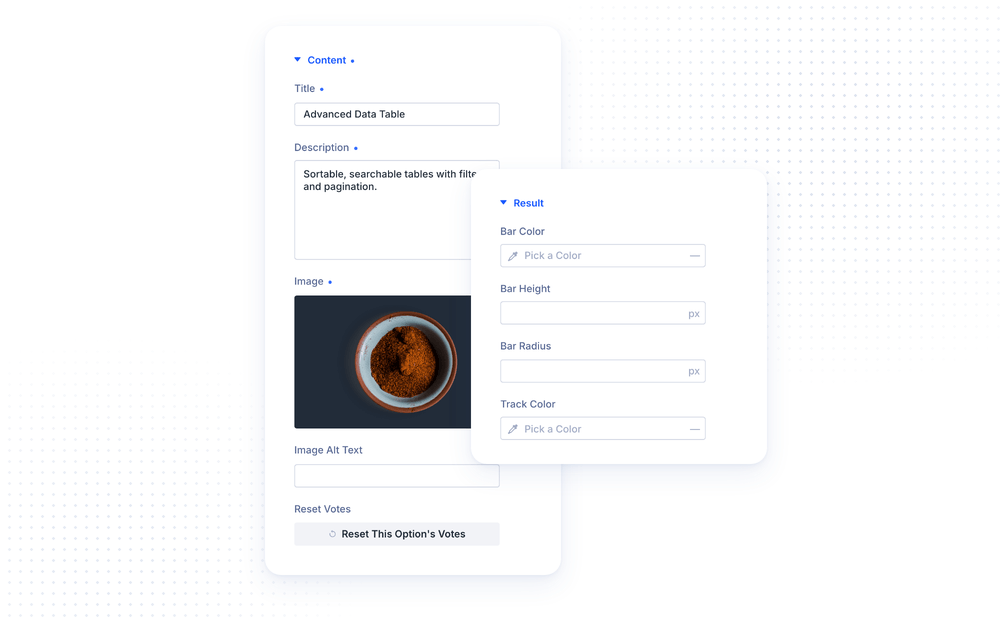
Each child item is one answer. Its Content group holds the Title visitors see, an optional Description below it and an optional Image with its Image Alt Text. Leave the description and image empty for a clean, text-only list.
Reset Votes in the same group permanently deletes the votes of this one answer. You see the exact number of votes before you confirm, and the reset takes effect immediately, without saving the page.
The Design tab of every option has a Text group (with Title and Description tabs) and a Result group. Use them to make a single answer stand out, for example with its own bar color. Everything you set here overrides the poll’s shared design for this one answer.
Results
Visitors who may see the results get them right after voting, without a page reload. Each answer shows its percentage, its vote count and a result bar, and the answer the visitor chose is highlighted. When the poll scrolls into view, the bars fill up and the percentages count up from zero. Visitors who prefer reduced motion in their system settings see the final values straight away.
The Result Style option in the Results design group has two layouts:
- Card With Progress Bar shows each answer as a card, with a slim progress bar, the percentage and the vote count below its title
- Filled Row turns each answer into a single row that fills up behind the title like a progress meter, with the percentage at the end of the row and a check mark on the visitor’s own choice
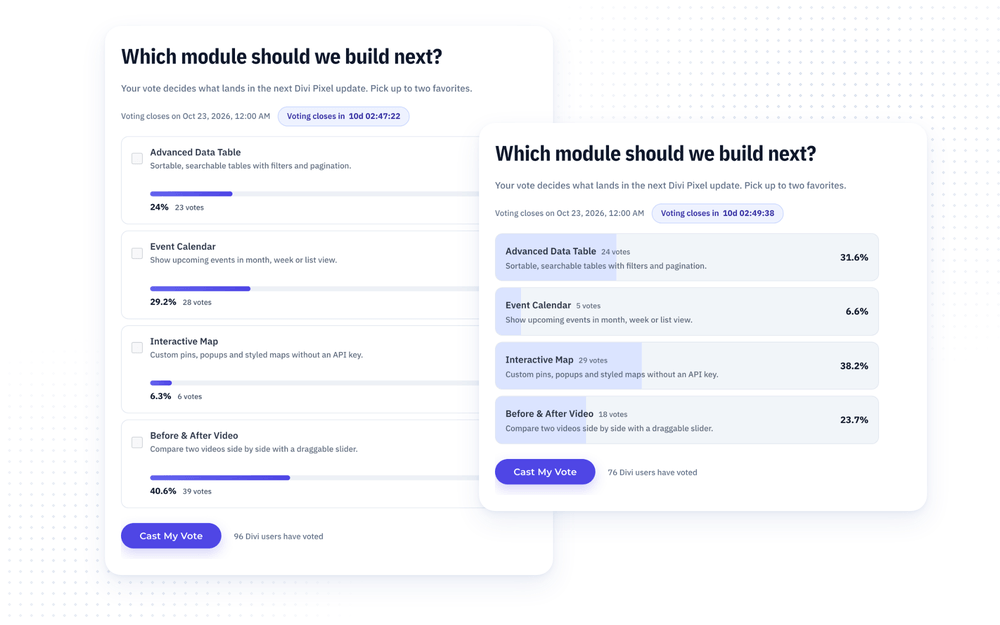
The same group sets the Bar Color, Bar Height, Bar Radius and Track Color of every answer, and the fonts of the Percentage Text and Count Text. In the Filled Row style, the Track Color is the background of the row itself, and Bar Height is not used, because the bar fills the whole row.
NOTE: In the Visual Builder, your poll has no real votes yet. Open the Results design group to preview the results with sample numbers, so you can style them before anyone has voted.
Button and Total Votes
The Button group sets the Button Text of the vote button. The button stays disabled until the visitor has picked an answer, and it disappears once they have voted. If you leave the text empty, the button shows “Vote”.
The Total Votes group sets the Total Votes Label, shown next to the button. Use {count} where the number should go, for example “{count} people have voted”. Reset Votes in this group permanently deletes every vote of the poll. You see the exact number of votes before you confirm, and the reset takes effect immediately, without saving the page.
Schedule
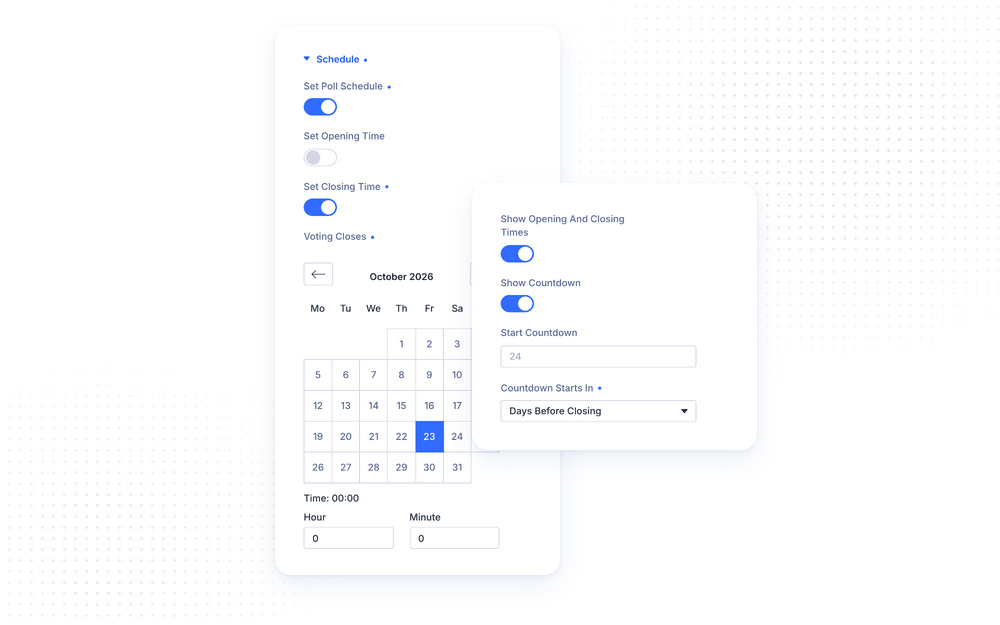
Turn on Set Poll Schedule to open and close voting automatically. When it is off, voting is always open and no schedule is shown.
- Set Opening Time keeps voting closed until Voting Opens. When it is off, voting opens as soon as the page is published
- Set Closing Time closes voting at Voting Closes. When it is off, voting stays open indefinitely
- Show Opening And Closing Times shows a line like “Voting closes on May 30, 2026 6:00 pm” above the answers
- Show Countdown counts down to the closing time, for example “Voting closes in 05:42:10”. Start Countdown and Countdown Starts In decide how long before closing it appears (24 hours by default)
All texts of the schedule can be changed: the four schedule lines (Before Voting Opens, While Voting Is Open, After Voting Closes and While Voting Is Open (No Closing Time)), the Countdown Label, and the Not Open Yet Notice and Closed Notice. Use {date} where the date should go. Dates are shown in your site’s own date and time format.
The poll opens and closes on its own, even for a visitor who already has the page open: when the opening time passes, the form unlocks, and when the closing time passes, voting locks. The server checks the schedule too, so nobody can vote outside of it.
NOTE: Opening and closing times use your site’s timezone, set in WordPress › Settings › General › Timezone. The schedule only changes when you save the page, so previewing an unsaved change never opens or closes a live poll.
Design Settings
The parent module styles every answer at once. Each Poll Option has its own Text and Result design groups to override the look of a single answer.
- Question and Description style the question and the text below it
- Option starts with the Accent Color, which colors the radio buttons and checkboxes, the keyboard focus outline and the default result bar. Below it, a Default tab and a Selected tab. Default sets the background, border, box shadow and padding of every answer, and Option Spacing sets the space between answers. Selected styles the answer a visitor has picked, so their choice stands out
- Option Text styles the answer Title and Description in two tabs
- Results styles the results (see above)
- Button has all of Divi’s button settings: background, border, font, icon and the hover effect
- Schedule styles the Opening And Closing Times, the Countdown (font, background and border) and the Status Notice (font, background and border)
- Total Votes styles the total votes text
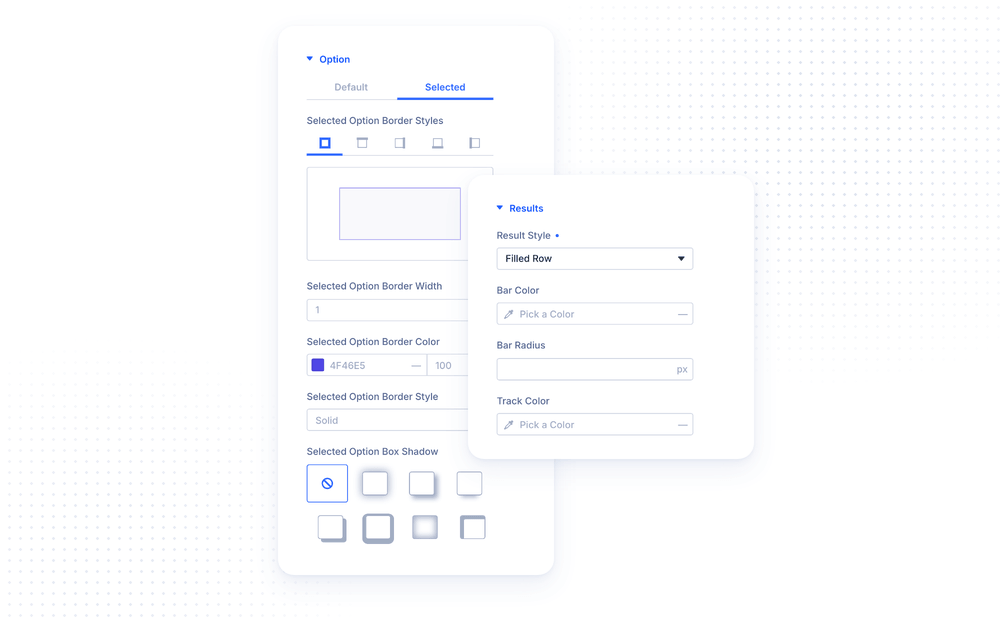
NOTE: While the Selected tab of the Option group is open, the builder shows the first answer as selected, so you can see the look you are editing.
Fair Voting and Privacy
The Poll module is built to keep results honest. Every visitor can vote only once per poll, and the server checks every vote: a Single Choice poll accepts exactly one answer, only the poll’s own answers count, and no vote is accepted outside the schedule. Votes are only accepted from your own website, and a single network can add at most 10 new guest voters per hour, which stops scripts from flooding the poll while still letting colleagues in an office vote.
Logged-in visitors are recognized by their account. Guests are recognized with an anonymous browser cookie that is only set when someone actually votes. The poll works with page caching plugins: every guest gets the same cached page, and a returning voter’s own vote is loaded in the background.
Accessibility
The answers are grouped under the question, so screen readers announce what they are answering. The poll works fully with the keyboard and keeps the focus in the poll after voting. Screen readers hear when a vote has been recorded, and any error message is shown on screen and read out as well.
Advanced Settings
The Advanced tab includes all standard Divi options: CSS ID & Classes, Custom CSS, Conditions, Visibility, Transitions, Position and Scroll Effects. The Custom CSS section has dedicated fields for the Question, Description, Options List, Opening And Closing Times, Countdown, Status Notice, Submit Button and Total Votes. Each Poll Option adds fields for its Title, Description, Image and Result.
Design Ideas
- Feature vote asks “Which feature should we build next?” with Multiple Choice, Result Visibility: After Voting and the Filled Row style, so every voter sees where their favorites stand.
- Live event poll opens voting when your webinar starts and closes it an hour later, with the countdown visible for the last 15 minutes.
- Product picker adds an image to every answer, for example three colors of a new product, and uses Card With Progress Bar with a bold Selected style.
- Secret ballot sets Result Visibility to Never while voting runs. Once the poll closes, the final results are revealed to everyone.