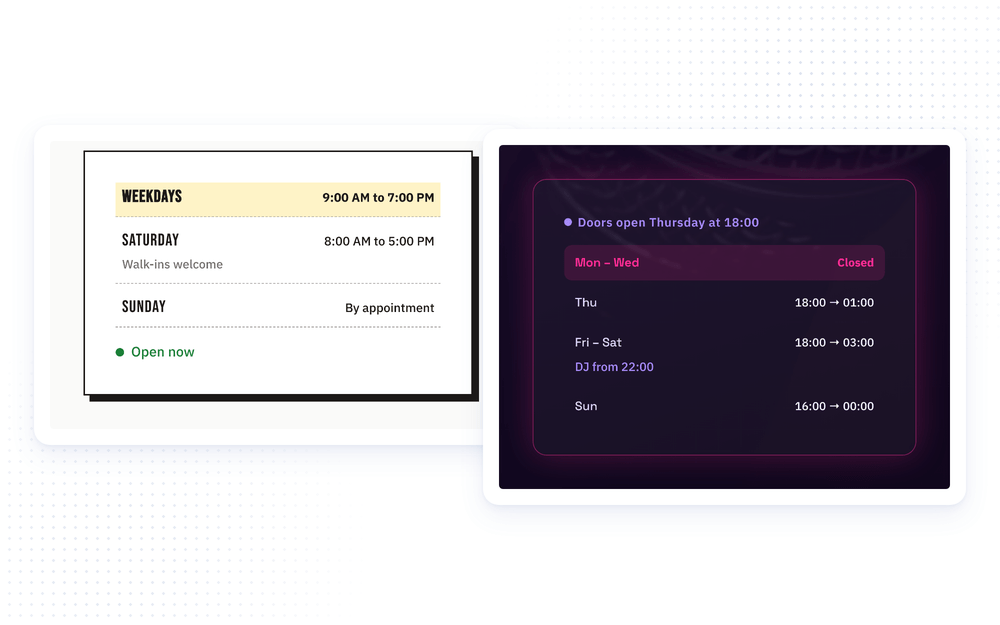
Business Hours
Meet the Pixel Business Hours module for Divi! Show your opening hours in a clean, readable list and tell every visitor at a glance whether you are open right now. A live status badge counts down to closing time, announces when you open next, and keeps itself up to date every minute, even on cached pages. Split shifts, late nights past midnight, round-the-clock days and one-off holiday hours are all covered.
With the Pixel Business Hours module you can:
- List your opening hours by day, with days that share the same hours grouped into one row (Mon – Fri)
- Show a live Open now / Closed status that updates every minute in your site’s timezone
- Warn visitors when you close soon or open soon, with a countdown in minutes
- Add a second shift for split hours, such as a lunch and a dinner service
- Keep a row open past midnight, open 24 hours, or mark a day as closed
- Set special dates for holidays and one-off days without touching your regular hours
- Highlight today’s row, add a short note under any row and style every part in the Design tab
How the module works
The Pixel Business Hours is a parent/child module. The parent module is the whole schedule: the status badge, how the hours are written and the shared design of the list. Each child item is one hours row: one or more weekdays with their opening and closing times, or a special date.
The status is worked out in the visitor’s browser, in your site’s timezone (Settings > General in WordPress), and refreshed every minute. Page caching never shows a stale “Open now”, and the highlighted row moves to the next day at midnight on its own.
How to add the Business Hours module
- Open a page with the Divi Visual Builder
- Click the + (Add New Module) button
- Search for Pixel Business Hours and click it to insert the module
- The module starts with three sample rows. Click a row to edit its days and times
- Click Add New Hours Row for every other set of days
- Save the page. The status and today’s row work right away on the front-end
NOTE: Check that the timezone in Settings > General is your business’s timezone. The status, the countdowns and today’s row all follow it, wherever your visitor is.
Hours Rows
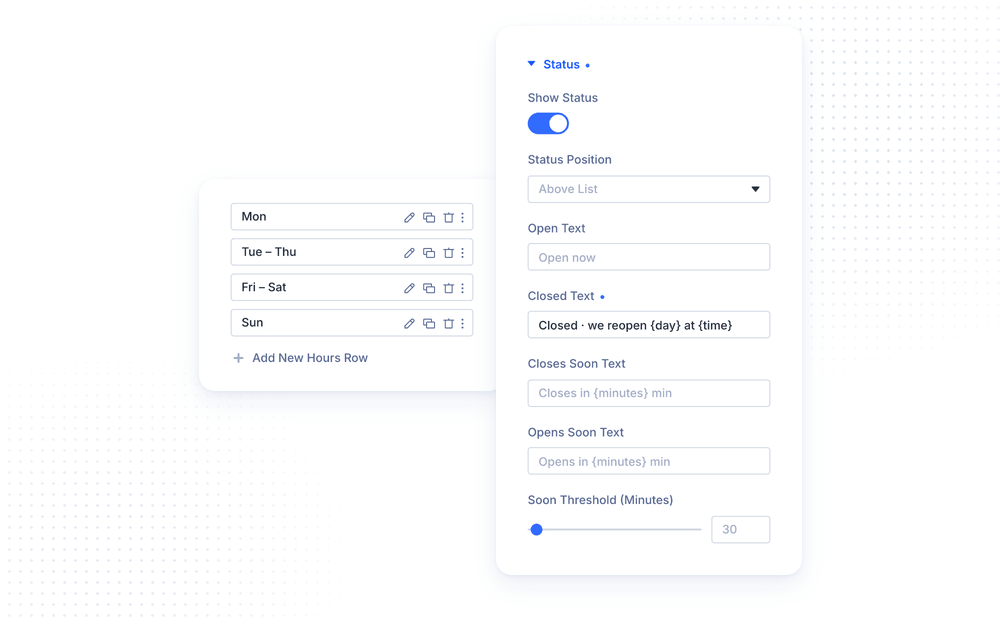
The top of the Content tab lists your rows. Each row is named after its days (Tue – Thu) or its Day Label, so you can find it quickly. Drag the rows to put them in order, and use the icons next to each one to edit, duplicate or delete it.
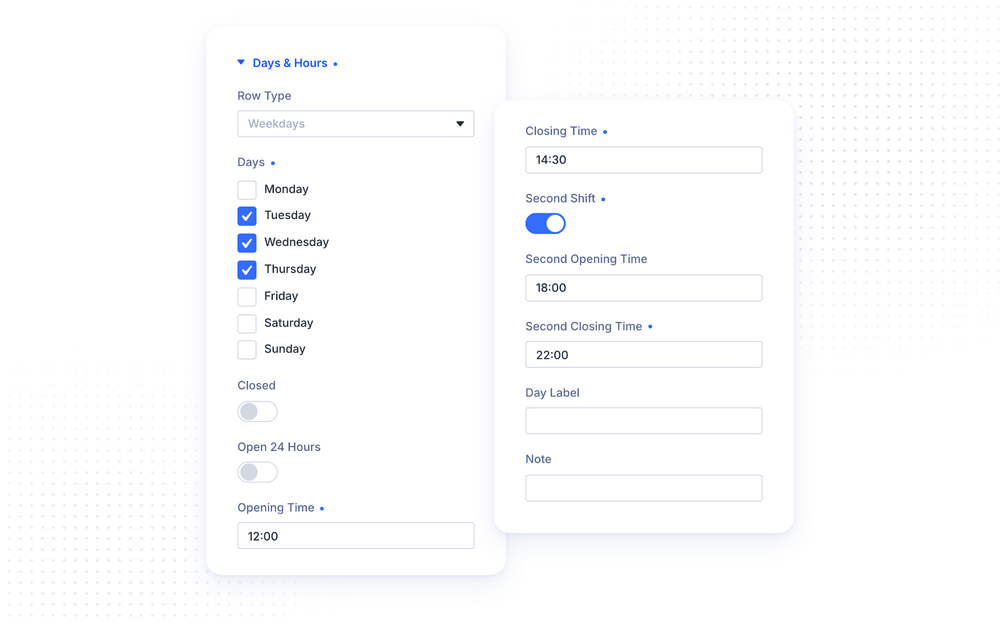
Click a row to open its Days & Hours group:
- Row Type is Weekdays for a row in the list, or Special Date for one date (see Special Dates below)
- Days are the weekdays this row covers. Tick several days to show them in a single row
- Closed marks the days as closed all day
- Open 24 Hours keeps the days open all day
- Opening Time and Closing Time are written as 24-hour times, for example 09:00 and 17:00
- Second Shift adds a second opening on the same days, with its own Second Opening Time and Second Closing Time
- Day Label replaces the day names, for example “Weekdays”. Leave it empty to list the days
- Note adds a short line of text under the row, for example “By appointment”
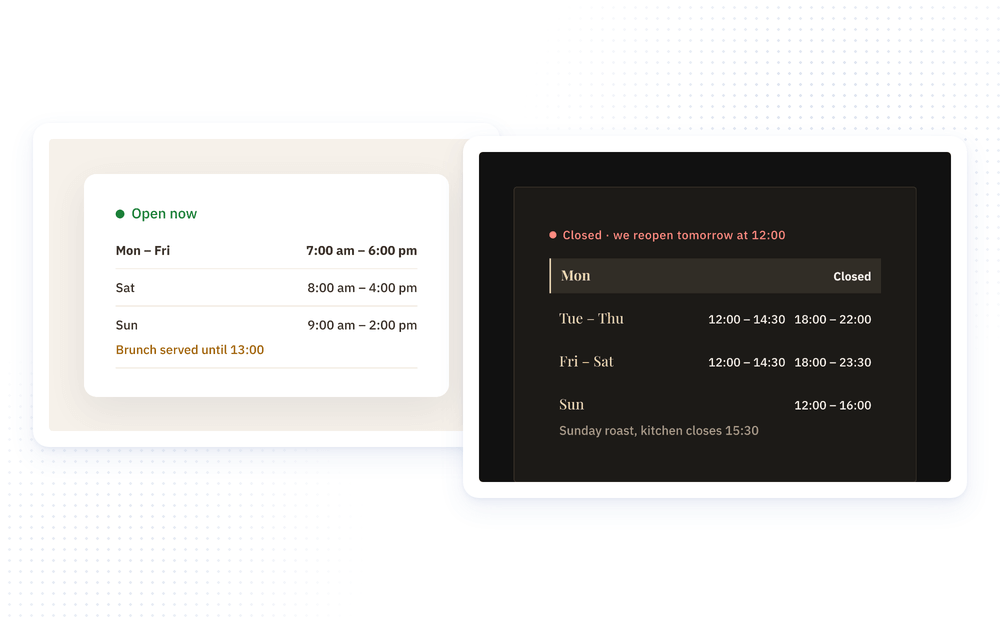
Times are always entered as 24-hour times, whatever format your visitors see. Use 24:00 for the end of the day. A closing time earlier than the opening time runs past midnight, so 20:00 to 02:00 means open until 2 at night, and that night still belongs to the day it started on. The second shift starts after the first one closes, for example 12:00 to 14:30 and 18:00 to 22:00.
Days that follow each other are written as a range (Mon – Fri), other days one by one (Mon, Wed). If two rows cover the same day, the lower row in the list wins.
NOTE: The Visual Builder warns you about a row it cannot use: a row without days is not shown, and a row with a mistyped time, the same opening and closing time, or a second shift that starts before the first one closes counts as closed. The warning only appears in the builder, never on your live page.
Special Dates
Set Row Type to Special Date for a holiday, a short day or any one-off change. Pick the Date in the calendar and set its hours as usual, or turn on Closed. On that date, the special hours replace the regular hours of that weekday in the status.
Special dates do not appear in the list, so your regular hours stay clean. They only change what the status badge says, for example “Closed · opens tomorrow 9:00 am” on a public holiday. Past dates are ignored, so you can leave old special dates in place or delete them whenever you like.
NOTE: A Special Date row without a date is ignored. Day Label and Note are hidden for special dates, as these rows are never shown in the list.
Status
The Status group in the Content tab controls the badge that tells visitors whether you are open:
- Show Status turns the badge on or off
- Status Position places it Above List or Below List
- Open Text is shown while you are open. The default is “Open now”
- Closed Text is shown while you are closed. The default is “Closed · opens {day} {time}”
- Closes Soon Text is shown shortly before closing. The default is “Closes in {minutes} min”
- Opens Soon Text is shown shortly before opening. The default is “Opens in {minutes} min”
- Soon Threshold (Minutes) sets how many minutes before an opening or closing the soon texts appear. 0 turns them off
The texts use three placeholders that are filled in for you:
- {day} becomes “today”, “tomorrow” or the weekday of your next opening
- {time} becomes the time of your next opening
- {minutes} becomes the minutes until you open or close
Write the texts in your own words, for example “Closed · we reopen {day} at {time}”. When there is no opening at all in the next 7 days, the badge shows the Closed Text from the Display group instead.
Display
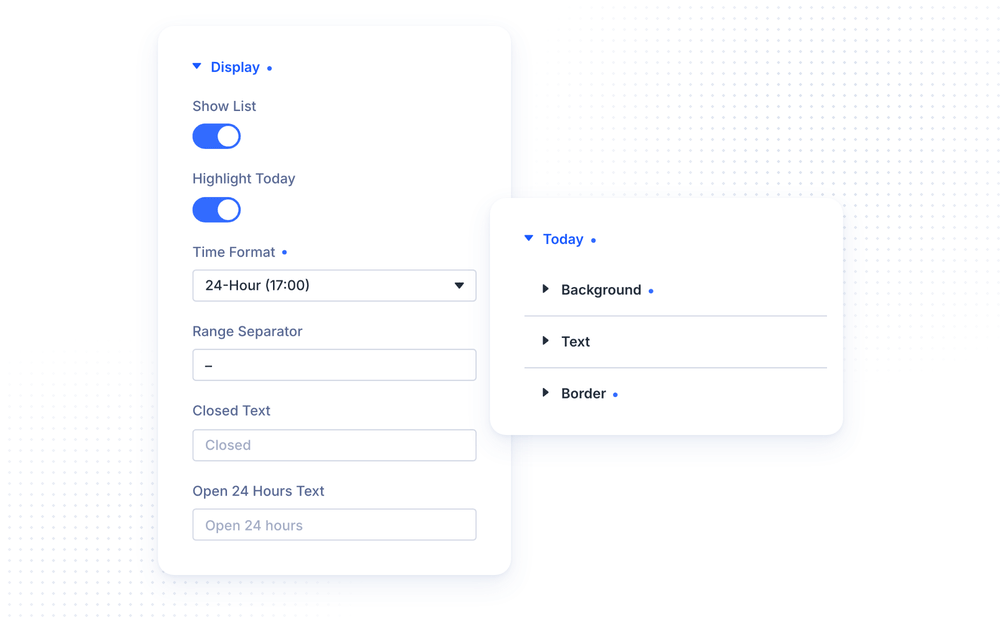
The Display group sets what the list shows and how the times are written:
- Show List shows the opening hours. Turn it off to show only the status badge, for example in a header or footer
- Highlight Today marks today’s row, so visitors find it straight away
- Time Format writes the times as WordPress Setting, 24-Hour (17:00) or 12-Hour (5:00 PM)
- Range Separator is written between the opening and closing time, an en dash by default. Try “to” or an arrow
- Closed Text replaces the hours on a closed row
- Open 24 Hours Text replaces the hours on a row that is open 24 hours
WordPress Setting uses the time format from Settings > General. If that format also contains a date or a timezone, WordPress’s default time format for your site’s language is used instead.
NOTE: If both Show Status and Show List are off, the module has nothing to show. The Visual Builder warns you when this happens.
Design Settings
The Design tab has a group for every part of the module. Each group only appears while the part it styles is shown.
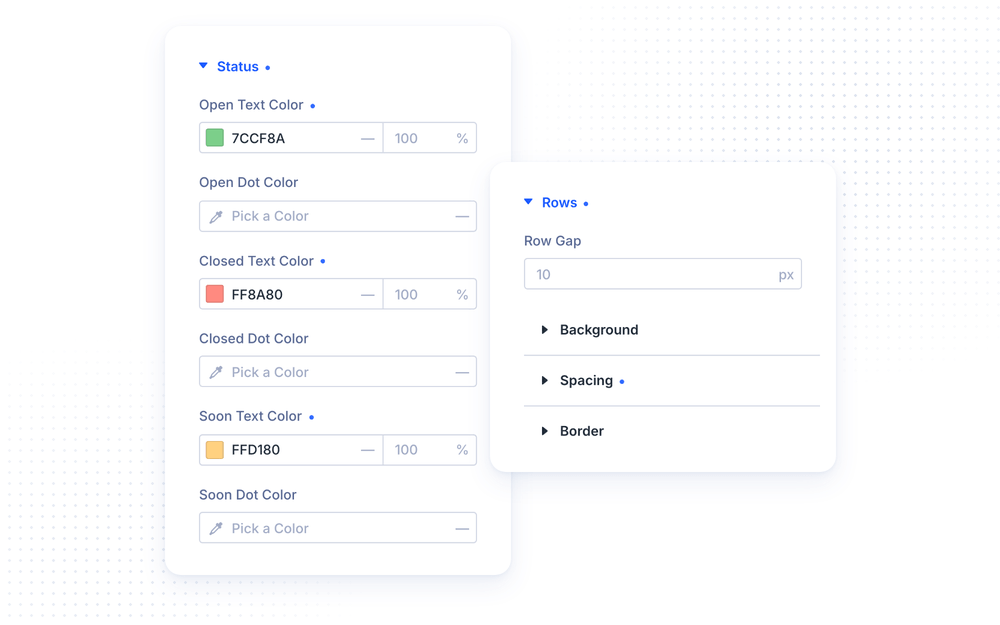
- Status sets the Open Text Color, Closed Text Color and Soon Text Color of the badge, and a separate color for its dot in each state. Leave a dot color empty to match the text. Its Background, Text, Spacing and Border subgroups turn the badge into a pill or a button-like label
- Rows sets the Row Gap between the rows, and the Background, Spacing and Border of every row. A bottom border gives you divider lines
- Today styles the highlighted row with its own Background, Text and Border
- Text has Day, Hours and Note tabs with the full font settings for each
The state colors of the status override the color set in its Text subgroup, so the badge is green, red or amber without any extra work.
The Advanced tab adds Custom CSS fields for the Status, Status Dot, Row, Today Row, Day, Hours and Note, next to Divi’s usual advanced settings.
Design Ideas
The module fits anything from a quiet footer to a bold hero section. A few ideas to get you started:
- Classic card: a white card with thin row dividers and a green “Open now” above the list, for a café or a shop
- Dark and elegant: a serif font, a gold border on today’s row and a split lunch and dinner service, for a restaurant
- Bold retro: uppercase days, a yellow background on today’s row and a hard offset shadow on the module, for a barber shop
- Night mode: a glowing border, a pink today row and an arrow as the Range Separator, for a bar or a club open past midnight
- Status only: turn off Show List and drop the badge into your header, so every page shows whether you are open